Screen Mirroring.
  • Apple
    • All
    • Android
    • featured
    • Featured posts
    • iOS
    • Macbook
    • Screen Mirroring
    • TV
    • Uncategorized
    • Windows
    Ads-have-been-limited

    How to Fix YouTube Invalid Traffic

    screen-mirror-laptop-to-tv

    How to Screen Mirror Laptop to TV – Complete Guide

    How to connect android phone to smart tv 2026 complete guide

    How to Connect Android Phone to Smart TV (2026 Complete Guide)

    iOS 26 Friendly Wallpapers

    iOS 26 Friendly Wallpapers for you!

    Transform Your iPhone: Create a Dark & Aesthetic Theme

    Transform Your iPhone: Create a Dark & Aesthetic Theme

    How to Screen Mirror Motorola to TV

    How to Connect & Screen Mirror Motorola to TV

    How to Screen Mirror Tecno Android Phone to TV

    How to Screen Mirror Tecno Android Phone to TV

  • Samsung
  • Android
  • iOS
  • MacBook
  • Windows
No Result
View All Result
Freebies.
  • Apple
    • All
    • Android
    • featured
    • Featured posts
    • iOS
    • Macbook
    • Screen Mirroring
    • TV
    • Uncategorized
    • Windows
    Ads-have-been-limited

    How to Fix YouTube Invalid Traffic

    screen-mirror-laptop-to-tv

    How to Screen Mirror Laptop to TV – Complete Guide

    How to connect android phone to smart tv 2026 complete guide

    How to Connect Android Phone to Smart TV (2026 Complete Guide)

    iOS 26 Friendly Wallpapers

    iOS 26 Friendly Wallpapers for you!

    Transform Your iPhone: Create a Dark & Aesthetic Theme

    Transform Your iPhone: Create a Dark & Aesthetic Theme

    How to Screen Mirror Motorola to TV

    How to Connect & Screen Mirror Motorola to TV

    How to Screen Mirror Tecno Android Phone to TV

    How to Screen Mirror Tecno Android Phone to TV

  • Samsung
  • Android
  • iOS
  • MacBook
  • Windows
No Result
View All Result
Freebies.
No Result
View All Result
Home Windows

How to Connect DELL Laptop Screen to TV (Complete Guide)

January 9, 2025
in Featured posts, Windows
641 13
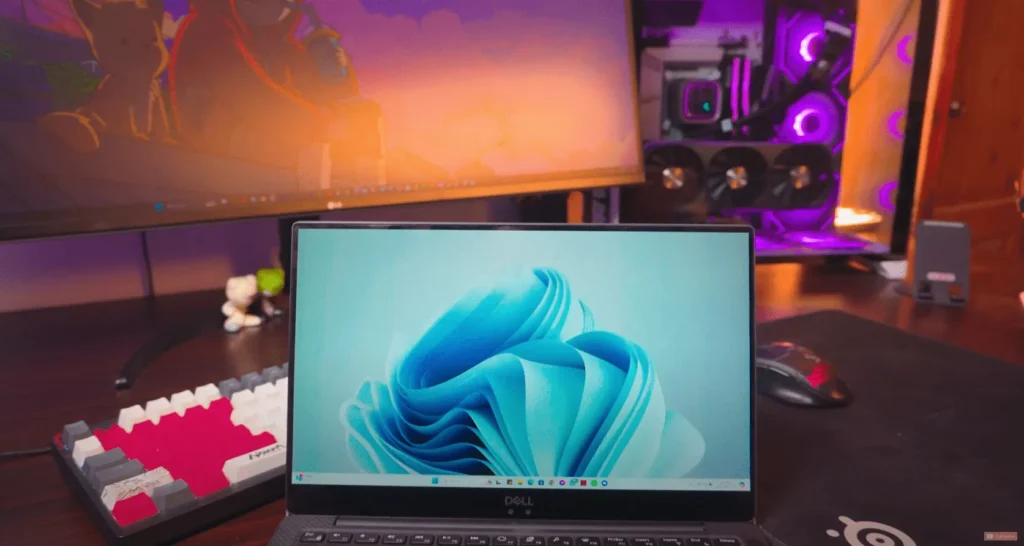
How to Connect Dell Laptop to TV

How to Connect Dell Laptop to TV

This image has an empty alt attribute; its file name is rizisuper-3.jpg

Watch new Tutorials on How-To Screen Mirror on Youtube every Week!

How does Connecting a Dell Laptop Screen to a TV work?

We won’t be using any software or anything. Just built-in Windows tools to Connect Dell Laptop Screen to TV making it completely free and wireless. In this case, we’ll be using Windows Wireless Display Features on pretty much all laptops and Dell laptops.

Connecting a Dell Laptop Screen to TV is Free & Wireless!

Cheers to that! Btw you can Catch the Tutorial on YouTube here: How to Connect Dell Laptop Screen to TV

How to Connect Dell Laptop to TV

What is required to Connect Dell Laptop Screen to TV?

We won’t be needing any software or tools. Just Your Laptop, TV and a okaish Wifi Connection!

  • Laptop with Windows 8.1 or Higher
  • Wifi / Hotspot
  • A TV with a compatible Screen Mirroring Feature

Wanna know if your TV supports Screen Mirroring or not? Here

How to Connect DELL Laptop Screen to TV: Wi-Fi Connection

Since we won’t be using any cable that’s why we need a wifi connection. Now, I recommend using your Home wifi or the Wifi that’s available to you.

In Case you don’t have wifi you can definitely use Hot-spot but, be careful with hotspot because it’s coming from your phone and may cost you credit or data depending on where you live.

You can also use Wifi Direct but it’s a lil bit complicated so we won’t be focusing on that in this article.

How to Connect DELL Laptop Screen to TV
Wi-Fi Connection on Laptop

Do make sure your TV supports Screen Mirroring. Check the Article on that to make sure.

How to Connect DELL Laptop Screen to TV: Mobile Hotspot (optional)

As I’ve said before, in case you don’t get any access to Home Wi-Fi or any Wi-Fi you can use a Hotspot either from your Laptop or from your Phone.

Just enable Hot-spot on your Phone and connect your Laptop to it, (Be careful with the Mobile Hotspot, depending on your Network it might cost you credit.)

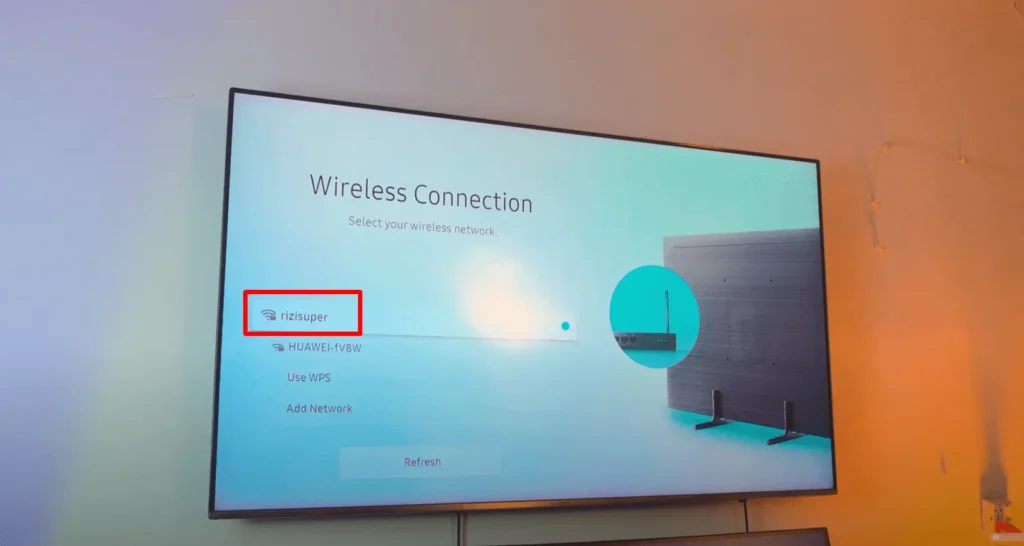
How to Connect DELL Laptop Screen to TV: Connect TV to the Same Wi-Fi

When connecting Dell Laptop Screen to TV, it’s important to ensure that both devices are connected to the same network.

So head over to your TV settings and find Network Settings it should be pretty simple.

Watch the Video Tutorial on YouTube

How to Connect DELL Laptop Screen to TV
Connecting TV to Same Wi-Fi
How to Connect DELL Laptop Screen to TV

As you can see above, I’ve got Three Different Options

  • “rizisuper” – (Home Wifi)
  • “HUAWEI” – (Mobile Hotspot)

Choose your preferred connection, just be careful with the mobile hotspot as it might cost you credit.

Head over to the Video Tutorial on YouTube

Enable Screen Mirroring on TV (Optional)

Usually you don’t need to do this step as it’s not required but some TVs do require which are old actually. So, if you got the Old TV and wanna make sure your Dell Laptop Screen connects to your TV successfully you might have to enable this option manually.

NOTE: If you’re like and using a latest TV, you don’t need to do this.

Do make sure your TV supports Screen Mirroring. Check the Article on that to make sure.

or, find Screen Mirroring Shortcut from your Remote Control

  1. Press the “Source” button on your TV remote
  2. Select Screen Mirroring in the Source Tab
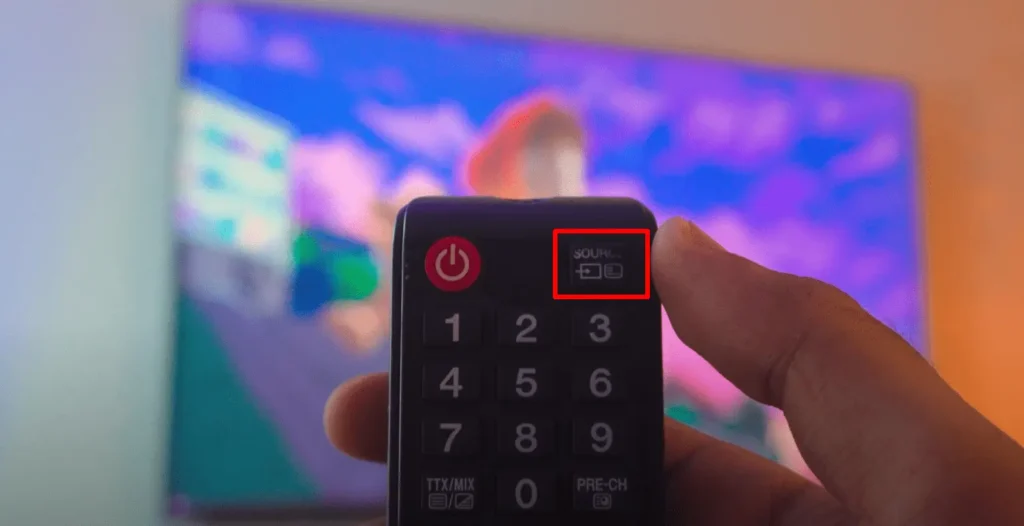
How to Connect DELL Laptop Screen to TV

NOTE: If you have got a Smart TV, you don’t need to enable Screen Mirroring Manually or do anything. Smart TV will automatically enable Screen Mirroring once Connected to Wifi / Hotspot.

How to Connect DELL Laptop Screen to TV: Laptop Settings

Once your Dell Laptop and TV are connected to the same network it’s pretty much simple from this point.

Go to Windows Settings: Settings > System
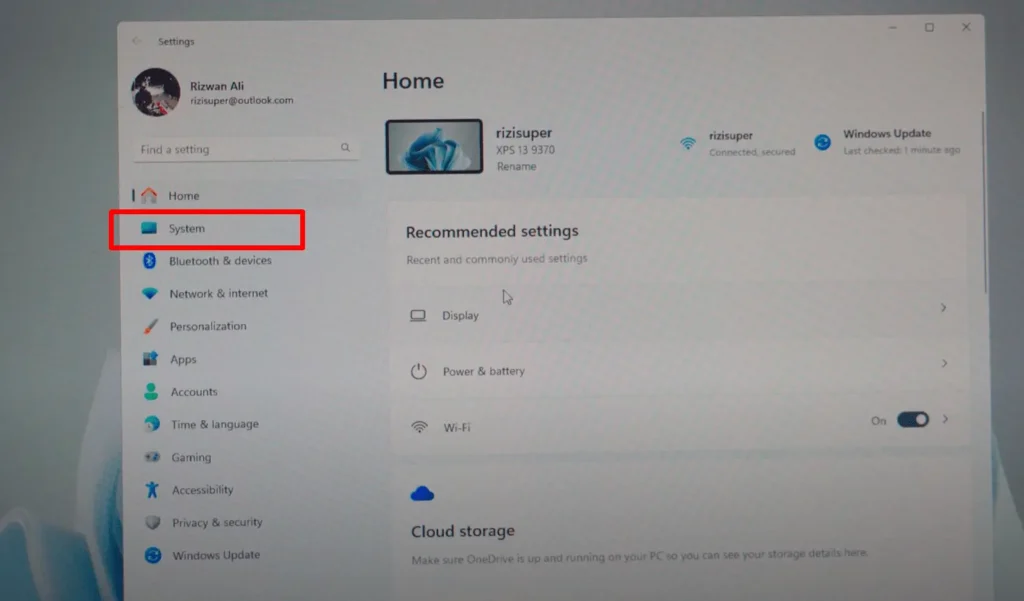
How to Connect DELL Laptop Screen to TV
Windows Settings > System

Go to Settings > System > Display
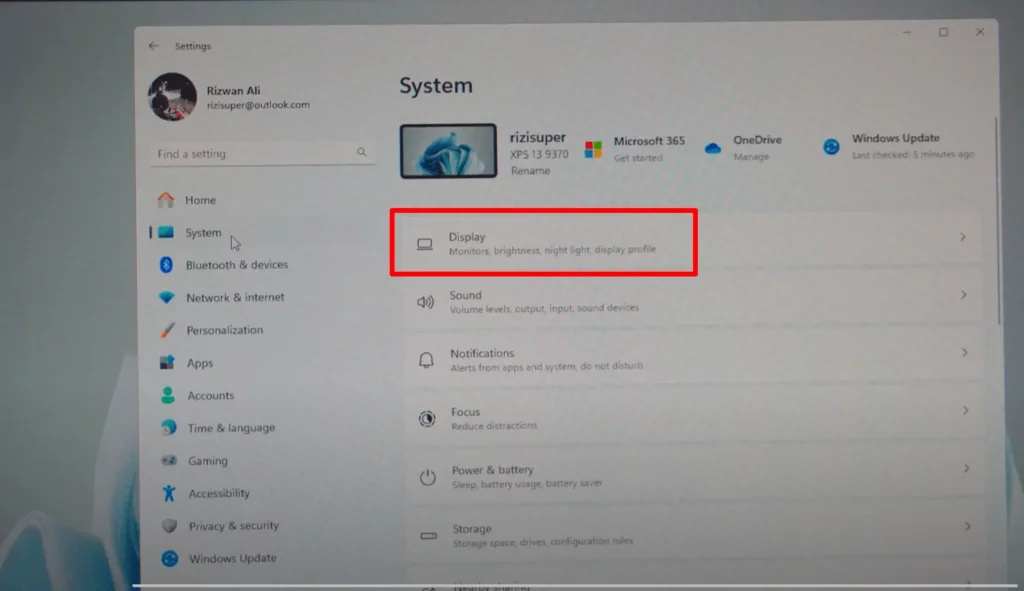
How to Connect DELL Laptop Screen to TV
Windows Settings > System > Display

Go to Settings > System > Display > Connect Wireless Display
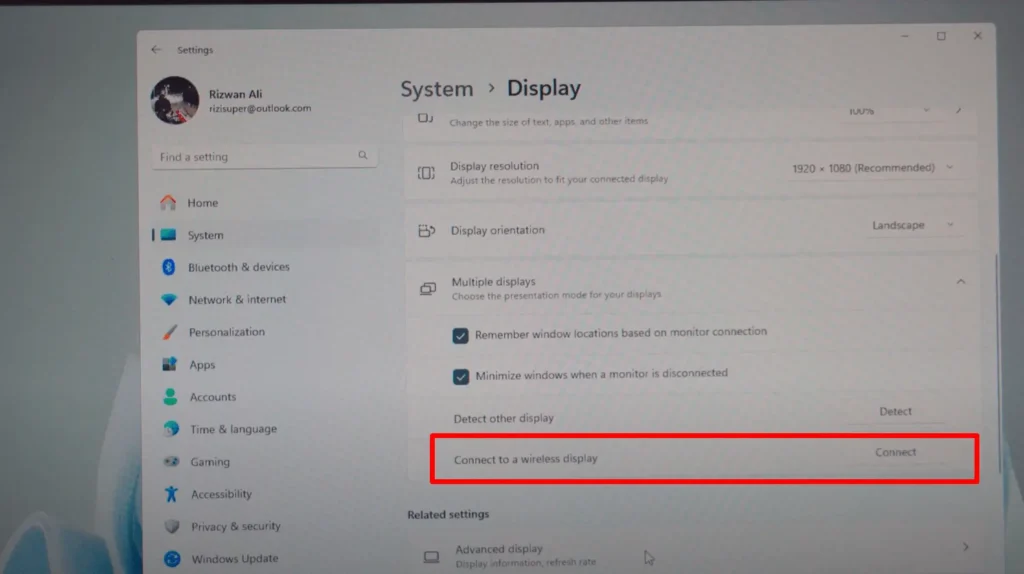
How to Connect DELL Laptop Screen to TV
Windows Settings > System > Display > Connect Wireless Display

Connect Dell Laptop To TV – Free and Wireless

Click on “Connect” button and Select your TV that you want your Dell Laptop to Connect to. It’s Free and Wireless.
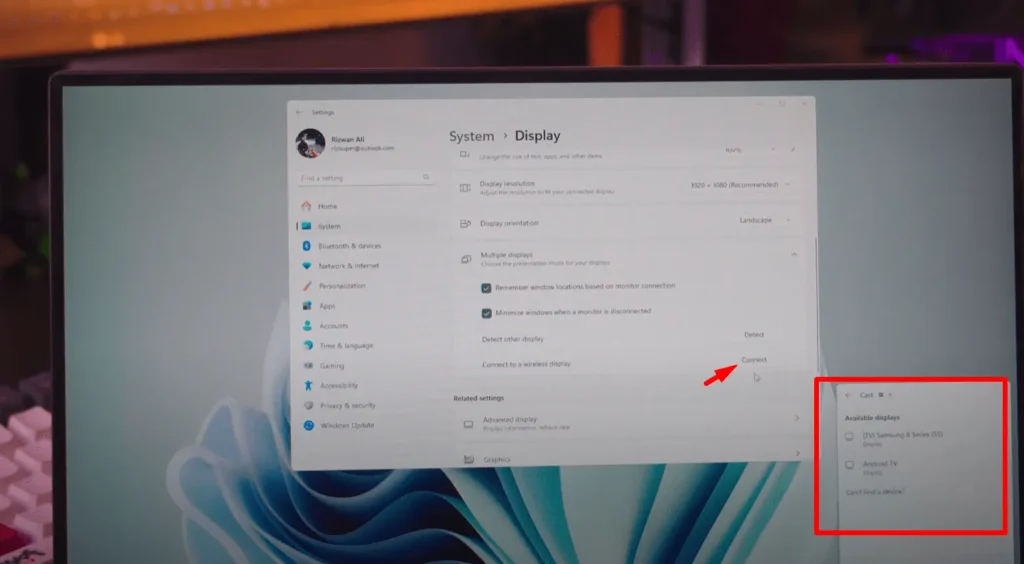
How to Connect DELL Laptop Screen to TV

How to Connect Dell Laptop Screen to TV

Bonus Points

How to Extend Display?

If you want more options press “Win+P” and enable the Extended-Display. To Enable Project Options:

  • PC Screen Only

Display the Screen Mirroring and only projects you to your Laptop

  • Duplicate

Pretty self-explanatory, it basically duplicates your Laptop Screen onto your TV, whatever you’ll do on your Laptop will be mirrored to the TV

  • Extend

Extends your Laptop Screen, making sure your TV is acting as a secondary monitor, great for work. Enables Dual Screen Setup for your Laptop

  • Second Screen Only

Displays your Dell Laptop Screen on your TV only, disables the Screen on Laptop.

How to Connect DELL Laptop Screen to TV

How to Disconnect Laptop Screen from TV?

Simple press “Win+P” on your Laptop Keyboard and a small window will pop up in the corner. Just Click Disconnect!
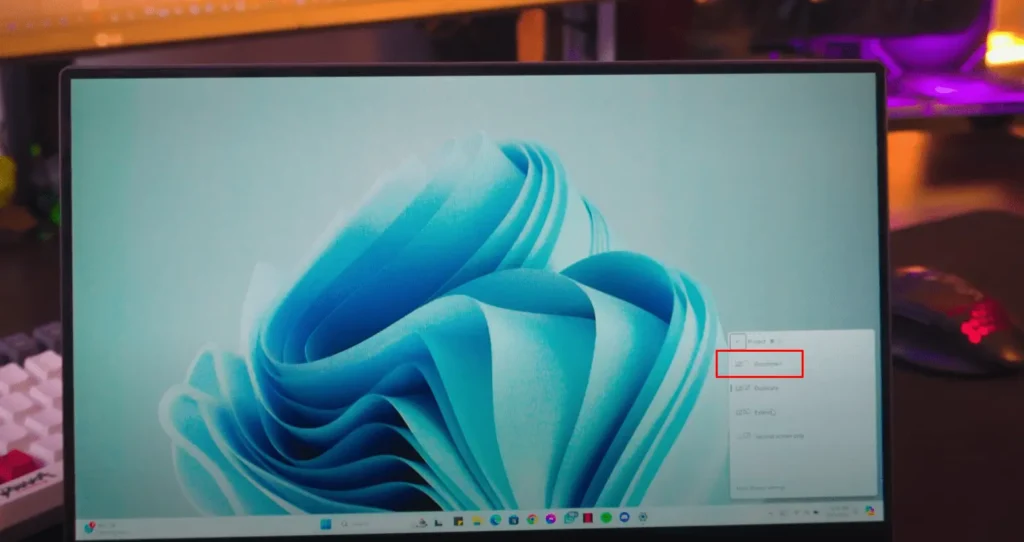
How to Connect DELL Laptop Screen to TV

Conclusion:

Complete Guide on How to Connect your Dell Laptop Screen to TV Completely Free and Wireless. Without having to download any Software or anything. Everything is built in. An Easy Step-by-Step Guide!

So, how useful was this tutorial? Comment down below! also if you want to Chromecast your Disney Plus, refer to this article on How to Watch Disney Plus on TV Chromecast.

Video Tutorial:

Tags: windows
SummarizeShare362

Related Posts

How to connect android phone to smart tv 2026 complete guide
Android

How to Connect Android Phone to Smart TV (2026 Complete Guide)

Watch new Tutorials on How-To Screen Mirror on Youtube every Week! A complete guide on How to Connect an Android...

January 29, 2026
iOS 26 Friendly Wallpapers
Featured posts

iOS 26 Friendly Wallpapers for you!

I searched the internet so you don't have to for the most amazing wallpapers that would go amazing with new...

October 6, 2025
Transform Your iPhone: Create a Dark & Aesthetic Theme
Featured posts

Transform Your iPhone: Create a Dark & Aesthetic Theme

Transform Your iPhone 15 Pro: Create a Dark & Aesthetic Theme! Tired of the same old app icons on your...

January 1, 2026
How to Screen Mirror Motorola to TV
Android

How to Connect & Screen Mirror Motorola to TV

Watch new Tutorials on How-To Screen Mirror on Youtube every Week! How to Connect & Screen Mirror Motorola to TV:...

April 30, 2025
Next Post
How to Screen Mirror Samsung Galaxy S25 Ultra to TV

How to Screen Mirror Samsung Galaxy S25 Ultra to TV

How to Screen Mirror Tecno Android Phone to TV

How to Screen Mirror Tecno Android Phone to TV

Recommended

How to Connect Macbook Screen to TV

How to Connect Macbook Screen to TV

October 16, 2023
Screen Share Mac

Screen Share Mac

November 20, 2023
mirror phone to roku tv

How to Mirror Phone to Roku TV

July 11, 2023
Screen Mirroring Samsung to Sony TV

Screen Mirroring Samsung to Sony TV

May 14, 2023

Categories

  • Android
  • featured
  • Featured posts
  • iOS
  • Macbook
  • Screen Mirroring
  • TV
  • Uncategorized
  • Windows

Instagram

    Go to the Customizer > JNews : Social, Like & View > Instagram Feed Setting, to connect your Instagram account.

Subscribe

Join over 12.000+ subscribers & be the first to get new freebies.

Disclaimer

This demo site is only for demonstration purposes to JNews WordPress theme. All images are copyright to their respective owners. All content cited is derived from their respective sources.

  • Home
  • Contact

Welcome Back!

Login to your account below

Forgotten Password?

Retrieve your password

Please enter your username or email address to reset your password.

Log In
No Result
View All Result
  • Apple
  • Samsung
  • Android
  • iOS
  • MacBook
  • Windows
Go to mobile version