Learn Screen Mirroring Laptop to TV without having to download any 3rd-party Software, everything is free and built into Windows these days.
This step-by-step guide will teach you How you can Mirror Laptop to your TV with just Wifi! Let’s dive in
Screen Mirroring Laptop to TV: Wirelessly
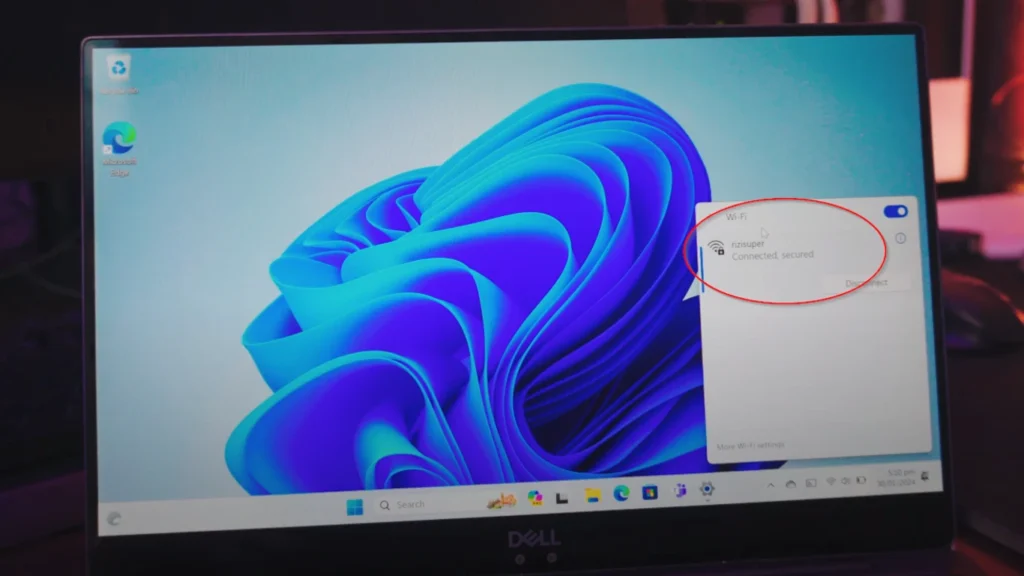
- Connect your Laptop to your Home Wifi
To Mirror Laptop Screen to the TV we need a connection in Between and that connection will be our Home Wi-Fi. We can use Hotspot as well, but for this guide, we’ll go with Wi-Fi.
If you wanna use Hotspot head to this Article for a Step-by-step guide on How to Screen Mirror Laptop Screen to TV using Hotspot
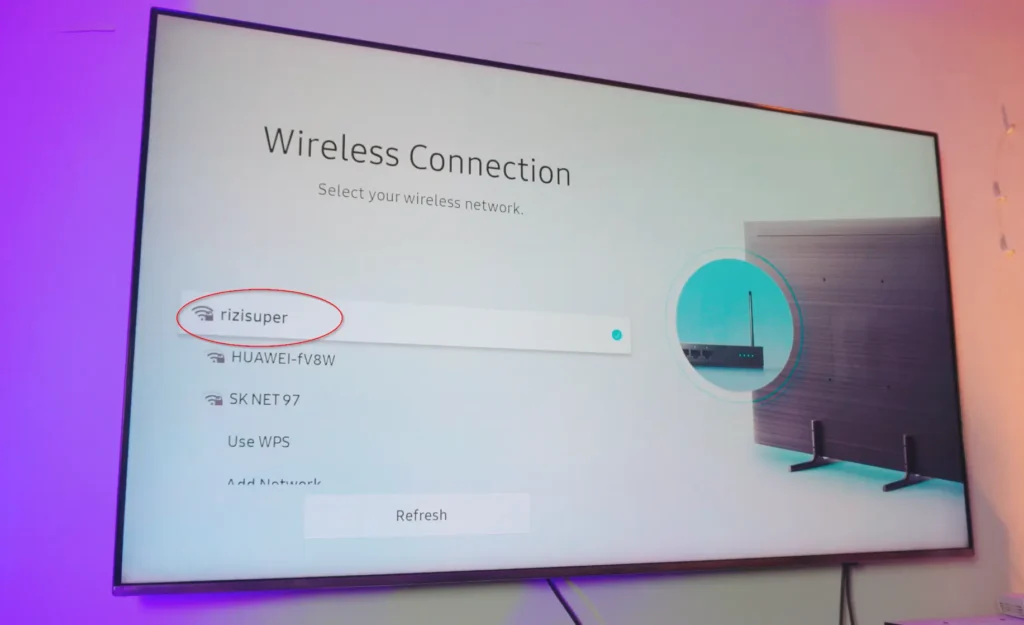
- Connect the TV to the Same Wi-Fi Network
Connect your TV to the exact same wifi network as your laptop. As you can see, my TV and my Laptop both are on my Home Wi-Fi.
- Screen Mirror Settings on Windows Laptop
Once your Laptop and TV are both on the Same network, now it’s time to navigate to the settings in Windows where we can Screen Mirror Laptop to TV wirelessly and for free.
Go to Settings > System
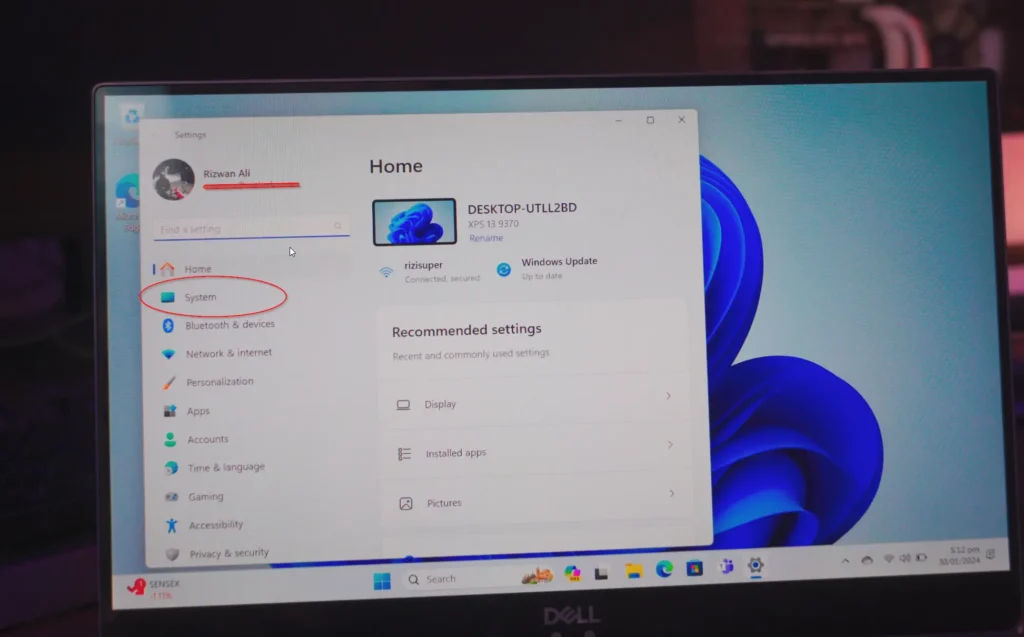
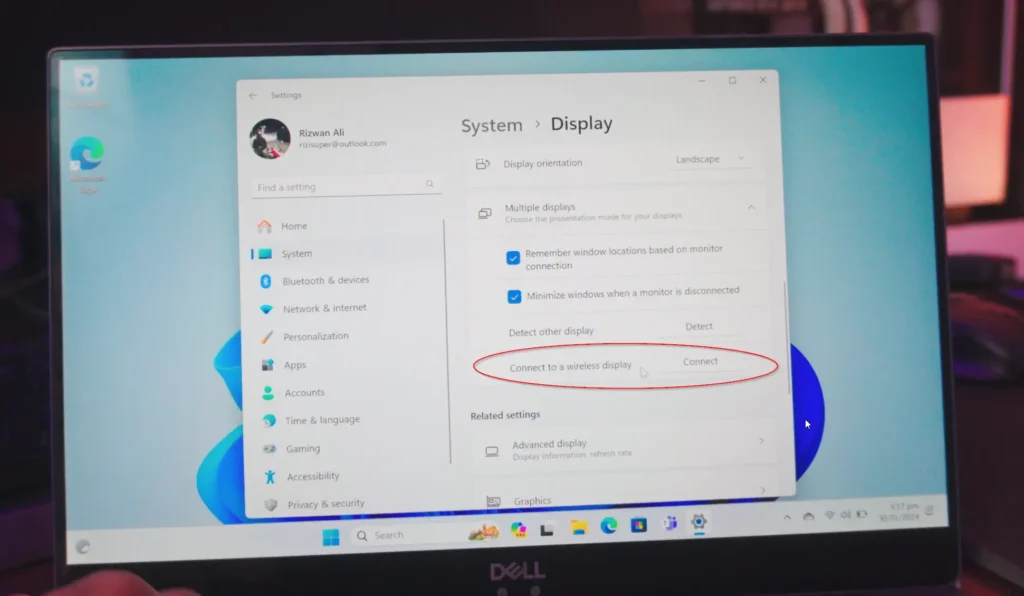
Go to Settings > System > Display > Connect to a Wireless Display
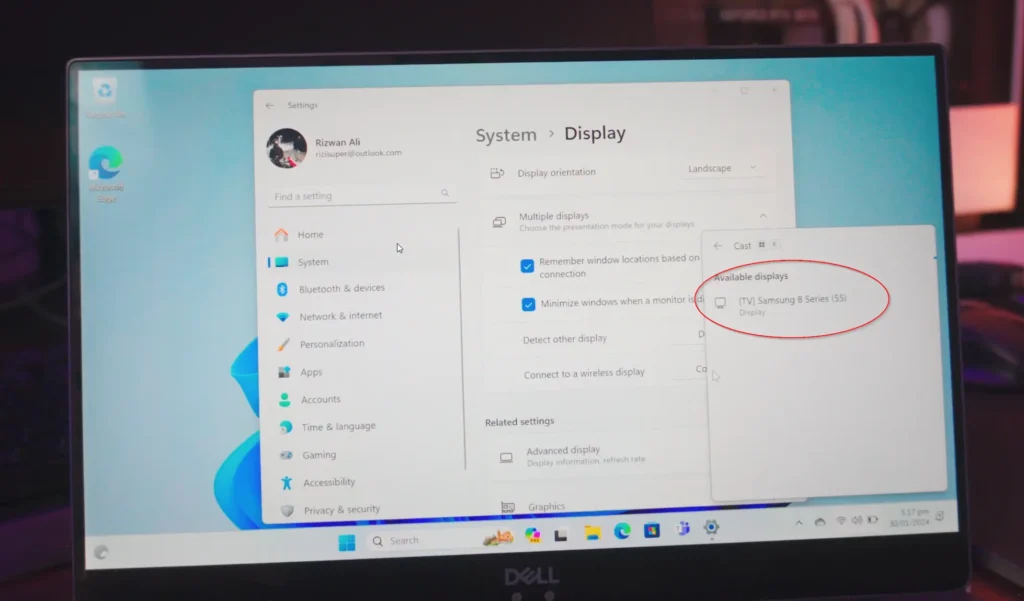
Select your TV from the Cast Menu and we’re connected. We can now Screen Mirror Laptop Screen to TV wirelessly and free.
Screen Mirroring Special Features:
You can get even more with this.
- Press WIN+P on your Laptop Keyboard and you’ll get 3 different options
Duplicat – Basically duplicates your Screen from your Laptop onto TV
Extend – Converts your TV screen into a second monitor-kinda thing, you can move applications between Laptop Screen to TV screen and it’ll be a completely different screen. You got 2 Screens to play with
Screen Mirroring Laptop to TV: Wired vs. Wireless
There are two main avenues for screen mirroring:
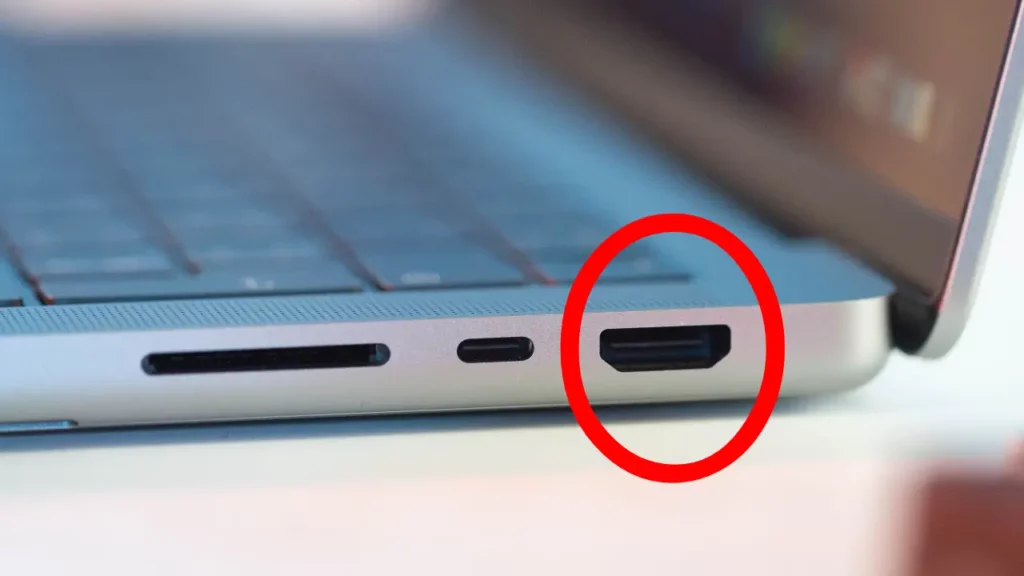
- Wired Connection: The classic HDMI cable remains a reliable option. Simply plug one end into your laptop’s HDMI port and Switch your TV source to that HDMI and you’re connected.
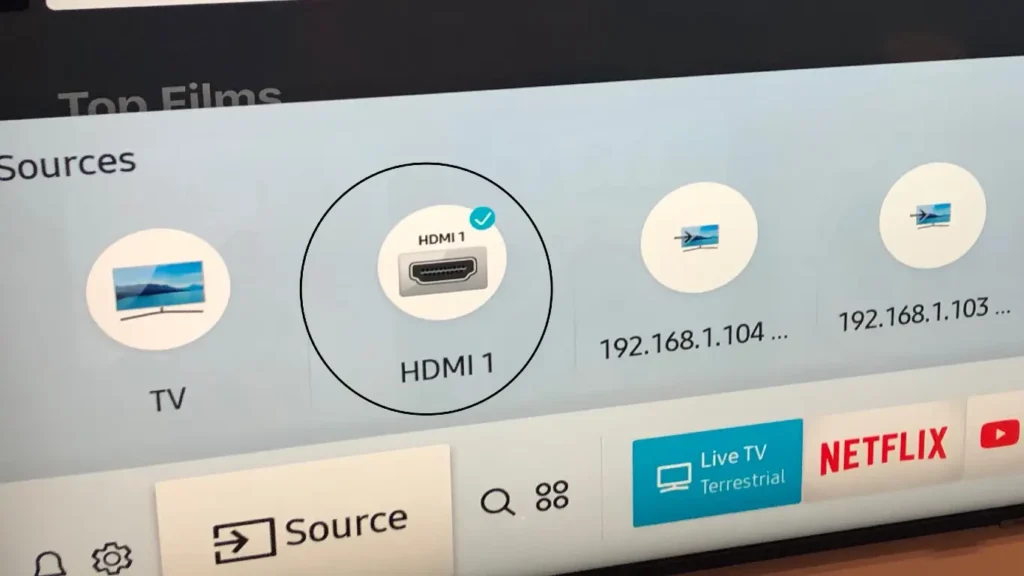
Although it’s pretty fast and reliable but it’s just not as clean as I’d like to call it. Having to handle cables/wires everywhere, can’t even move without being careful with the cables I mean, you get the point, right?
- Wireless Connection: Ditch the cables and embrace the freedom of wireless technologies like Miracast or Wi-Fi Direct. These features allow your laptop and TV to connect directly over Wi-Fi, eliminating the clutter.
Wireless Connection is easy to handle and manage and of course, it’s my favourite way to Mirror Laptop Screen to TV. So let’s do that!
Screen Mirroring Laptop to TV with Miracast:
- Check Compatibility: Ensure both your laptop and TV support Miracast. Most modern Windows laptops and Smart TVs do, but a quick online search can confirm.
- Projecting the Screen: Press the Windows Key + P on your laptop. This opens the “Project” menu.
- Choose Your TV: Select “Connect to a wireless display” and wait for your TV to appear.
- Connect and Enjoy: Click on your TV, and the mirroring begins!
A detailed Article here: How to Screen Mirror Laptop to TV Wirelessly
YouTube Tutorial:
Conclusion:
How To Connect or Mirror Laptop Screen To any TV without Wifi or HDMI cables. Completely wireless and 100% Free. Learn to Screen Mirror Windows Laptop Screen to any TV absolutely free and completely wirelessly!