
Mirroring.
  • Screen Mirroring
    • iOS
    • Android
    • Windows
  • Windows
  • Gadget
  • Technology
No Result
View All Result
Mirroring.
  • Screen Mirroring
    • iOS
    • Android
    • Windows
  • Windows
  • Gadget
  • Technology
No Result
View All Result
Mirroring.
No Result
View All Result
Home featured

How to Mirror iPhone Screen to Windows PC & Laptop

rizisuper by rizisuper
April 15, 2024
in featured, Featured posts, iOS
811 8
0
how to screen mirror iphone to windows.jpg

how to screen mirror iphone to windows

1.1k
SHARES
6.3k
VIEWS
Summarize with ChatGPTShare to Facebook
This image has an empty alt attribute; its file name is rizisuper-3.jpg

Watch new Tutorials on How-To Screen Mirror on Youtube every Week!

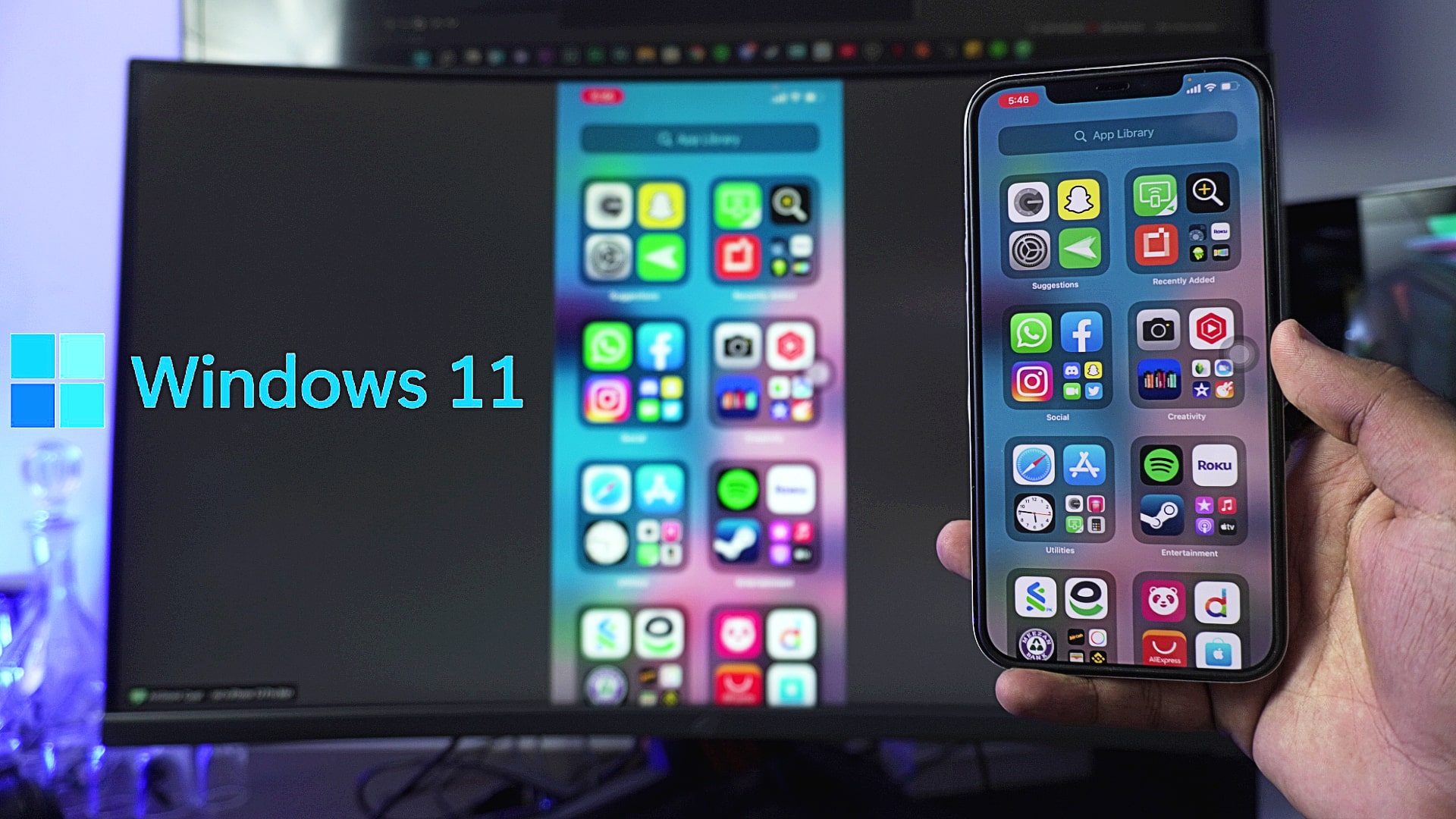
Screen Mirroring iPhone Screen to Windows PC or Laptop, completely free and without any time limits!

YOUR DREAM GAMING PC ON AMAZON:
Buy your dream gaming build on 40% sale!

How does it work?

Mirroring the iPhone screen to Windows PC or Laptop hasn’t been easy when you want it for free. But, it’s DONE now! Completely free and without having to worry about any time limit. Now you can easily Screen Mirror your iPhone Screen to your Windows PC or Laptop free of cast and easy as a bean!

AirDroid Cast on App Store: https://apps.apple.com/us/app/airdroid-cast-screen-mirroring/id1539892125

Since this method is completely free that’s why we have to download a free app on our iPhone called “AirDroid Cast” remember not to download the regular AirDroid!

Once you’ve downloaded the app on your iPhone, that’s all you need to do on your iPhone to Screen Mirror it to your Windows Laptop or PC.

Laptop or Computer:

We’ve to Download AirDroid Client on our PC or Laptop as it’ll work as the receiver.

Step 1: Go to the AirDroid Cast Website

Download the AirDroid Cast Client for your PC or Laptop here: AirDroid Cast

Step 2: Download the Client by Clicking on the Windows icon. And Begin Installing.

Install the AirDroid Client on your System, easy installation!

Step 3: Once the Installation is done

After installing is complete, it’ll show you a BARCODE and an actual CODE.

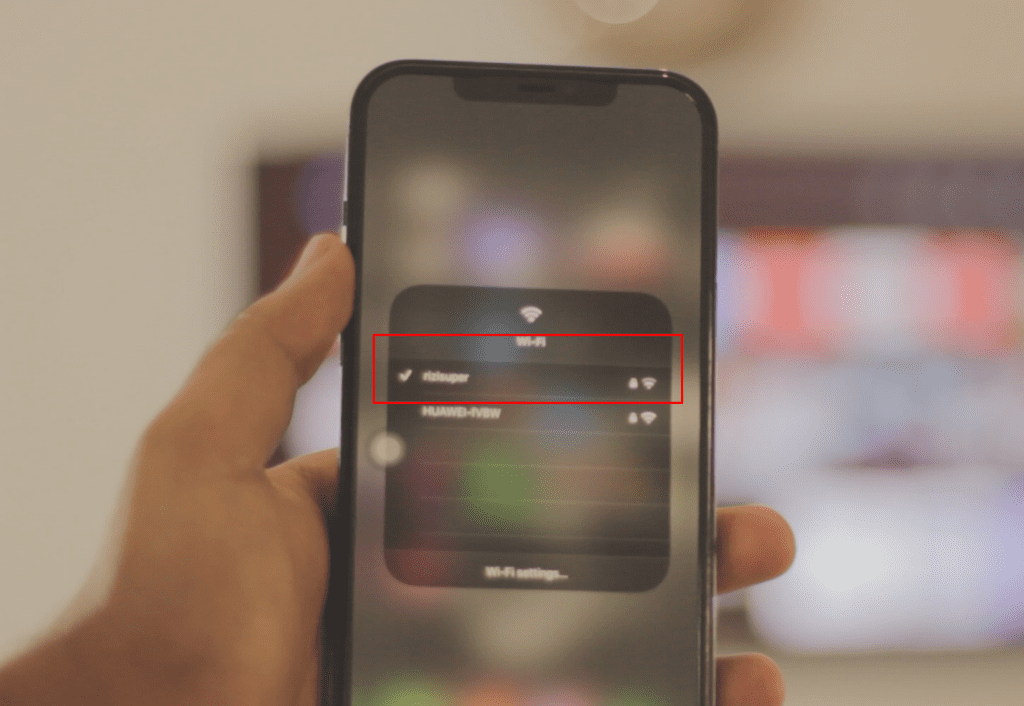
Step 4: Make sure your iPhone is on Same Network

Before opening the AirDroid App on our iPhone make sure you’re iPhone is connected to the same network as your PC or Laptop is. (Really Important)
screen mirroring iphone to tcl roku tv

Step 5: Open the AirDroid Cast App and make sure everything is ready to go

Open the app, and now you’ve two options. You can either manually enter the code or you can scan the barcode that you’re seeing on your computer.

Refer to the instruction below for more guidance.

Step 6: Scan The BarCode / Enter the Code

Once you scan either the Barcode or enter the code manually it’ll start Establishing a connection.

NOTE: It might ask you for permission on your Laptop or PC. So, select YES.

Step 7: Start the Broadcast once it’s all SET

Once the connection is established. All you need to do now is start broadcasting. And it’ll Mirror your iPhone Screen to your Laptop or PC completely Free and without any time limit!

Step: 7.1

Step 7.2

howscreenmirroring.net

Conclusion:

Mirror iPhone Screen to Laptop or PC has been an expensive solution but thanks to AirDroid it’s free and really easy to use. Now, people who make content don’t need to worry about buying expensive tools to Mirror iPhone Screen to your PC or Laptop.

Video Tutorial:

Affiliate Links:

Get TCL Roku TV on Amazon: https://amzn.to/ROKUTV
Get iPhone on Amazon: https://amzn.to/iPHONE
Previous Post

Screen Mirroring iPhone to TCL Roku TV

Next Post

How to Mirror iPhone Screen to Roku Express

rizisuper

rizisuper

Hey, I'm Riz. I know I get that a lot, haha. I'm a content creator. I love making videos on YouTube. I'm also a blogger, and this is one of those. I appreciate you reading all of this. Love y'all!

Next Post
How to Screen Mirror iPhone to Roku Express

How to Mirror iPhone Screen to Roku Express

Leave a Reply Cancel reply

Your email address will not be published. Required fields are marked *

You might also like

iOS 26 Friendly Wallpapers

iOS 26 Friendly Wallpapers for you!

October 6, 2025
Transform Your iPhone: Create a Dark & Aesthetic Theme

Transform Your iPhone: Create a Dark & Aesthetic Theme

January 1, 2026
How to Screen Mirror Motorola to TV

How to Connect & Screen Mirror Motorola to TV

April 30, 2025
How to Screen Mirror Tecno Android Phone to TV

How to Screen Mirror Tecno Android Phone to TV

April 30, 2025
How to Screen Mirror Samsung Galaxy S25 Ultra to TV

How to Screen Mirror Samsung Galaxy S25 Ultra to TV

March 18, 2025
How to Connect Dell Laptop to TV

How to Connect DELL Laptop Screen to TV (Complete Guide)

January 9, 2025
ScreenMirror

Your Content, Elevated. Why settle for a small screen? Whether you’re sharing memories from an iPhone or presenting from a laptop, our curated guides ensure your transition to the TV is smooth, wireless, and high-definition.

Stay Connected

  • Home
  • Privacy Policy
  • Affiliate Disclosure
  • Terms and Conditions

© 2026 Mirroring. - #1 Source for Screen Mirroring

Welcome Back!

Login to your account below

Forgotten Password?

Retrieve your password

Please enter your username or email address to reset your password.

Log In
No Result
View All Result
  • Screen Mirroring
    • iOS
    • Android
    • Windows
  • Windows
  • Gadget
  • Technology

© 2026 Mirroring. - #1 Source for Screen Mirroring

Go to mobile version