
Watch new Tutorials on How-To Screen Mirror on Youtube every Week!

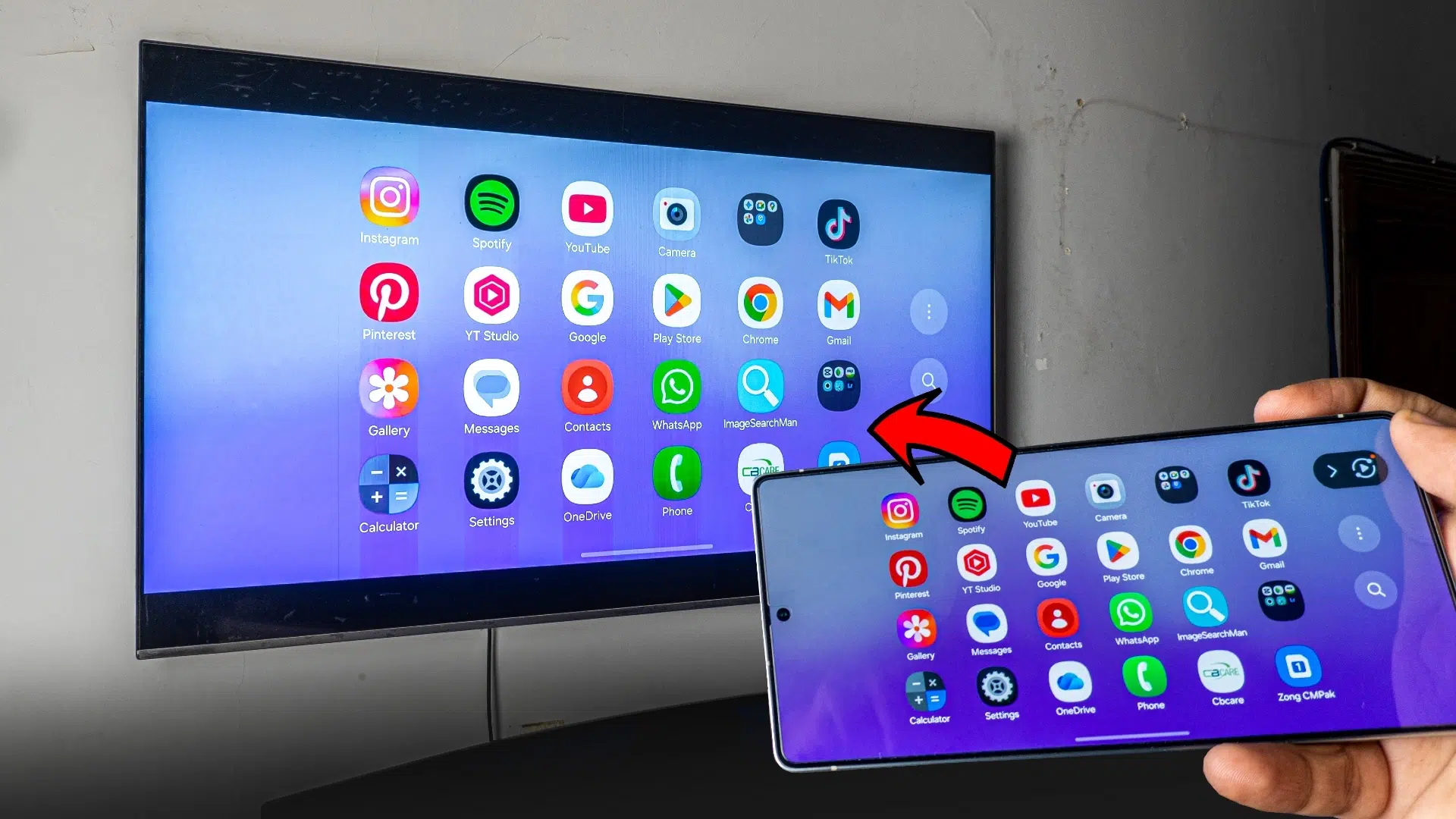
A complete guide on How to Connect an Android Phone to a Smart TV Free and Wireless. No 3rd-Party Apps are needed. Just one tap and Screen Mirroring Android Phone to Smart TV.
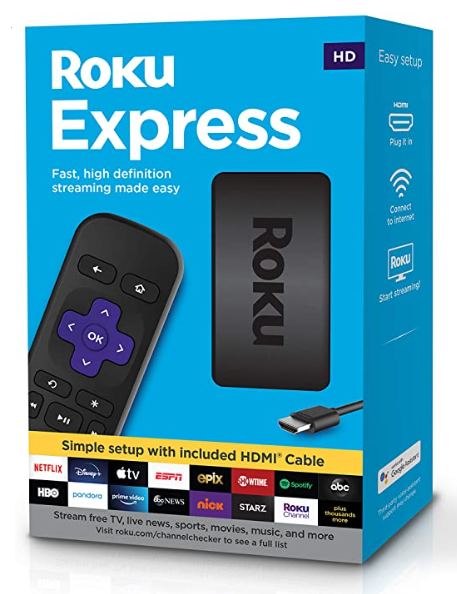
Buy Roku Express on Amazon:
Optional
Turn your normal TV into a Smart-TV with just a simple RokuExpress Dongle!
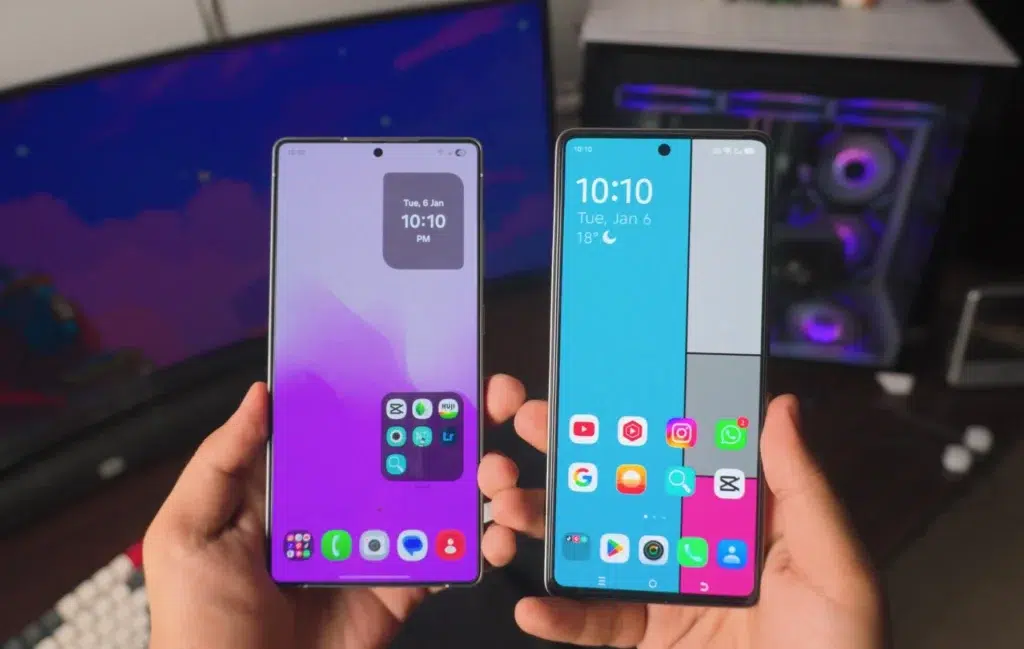
All Android Phones will Work!
Since, previously I had a lot of question on will my vivo work, will my xaiomi work… will the samsung? Well, for that I’m making this 2026 complete guide on How to connect android phone to smart tv.
I’m gonna show you pretty much all the settings there for either your samsung or any other branded android phone so, no need to worry!
And we’re going to cover all the major features, let’s dive in.
We will using Wi-Fi inorder to do all this, so follow the article it’ll be simple and easy.
For that wireless connection we have two different options, however I recommend using Home Wi-Fi.
For Network, you’ve options such as:
- Wi-Fi
- Hotspot
Note: Be careful with the Hotspot depending on your Network it might cost you credit or Data.
Got an iPhone? No worries, here: How to Screen Mirror any iPhone to TV!
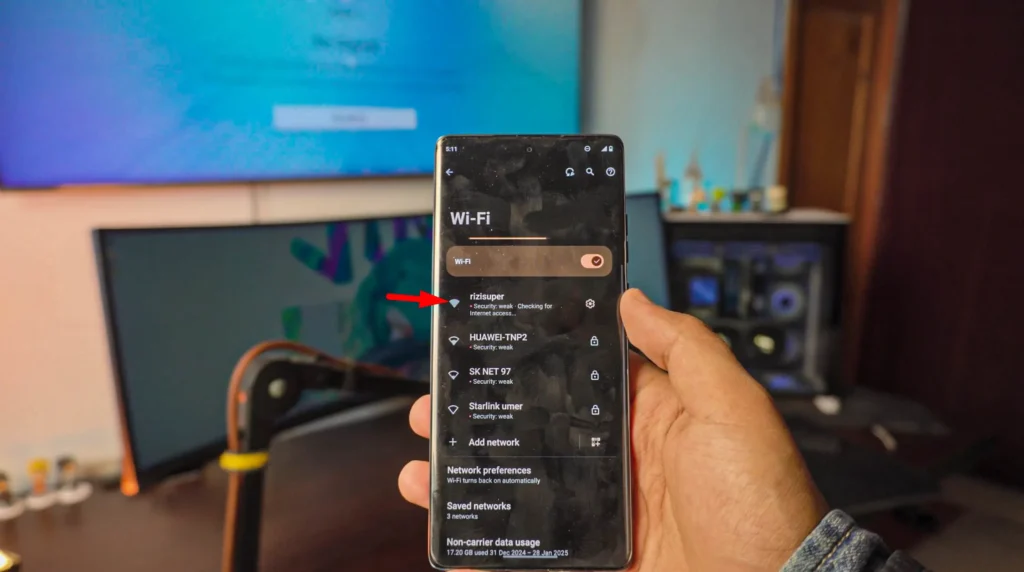
Connect your Android Phone to Wi-Fi or (Hotspot)
Don’t worry, process is same for whatever Android Phone you got!
Go to Settings > Network & Internet
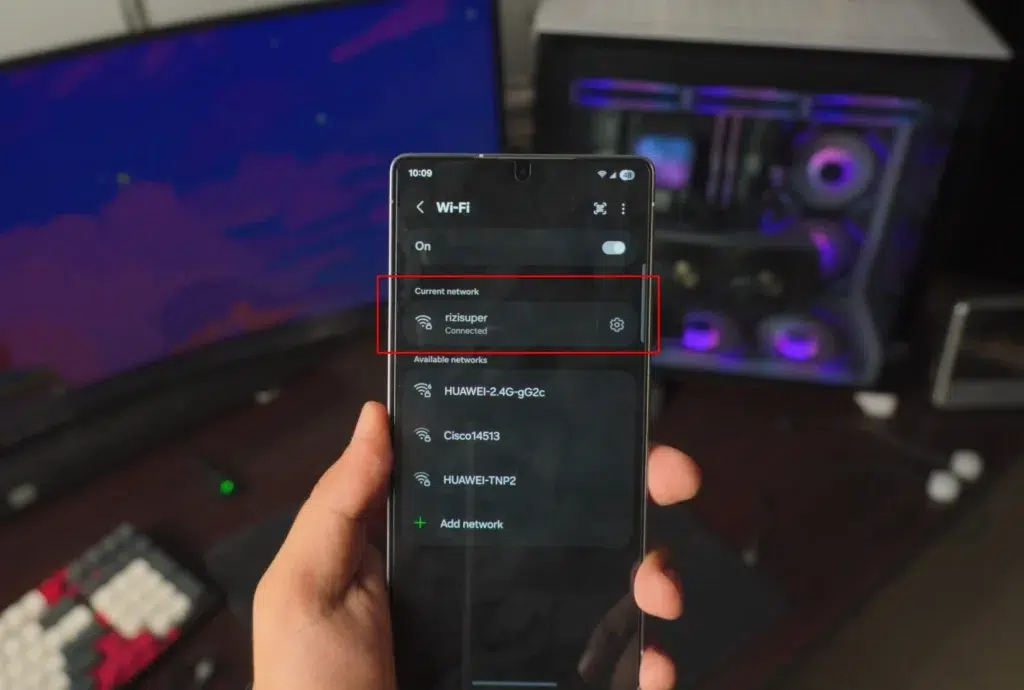
Select your Home Wi-Fi and connect your Android Phone to it.
Buy Roku Express on Amazon (optional)
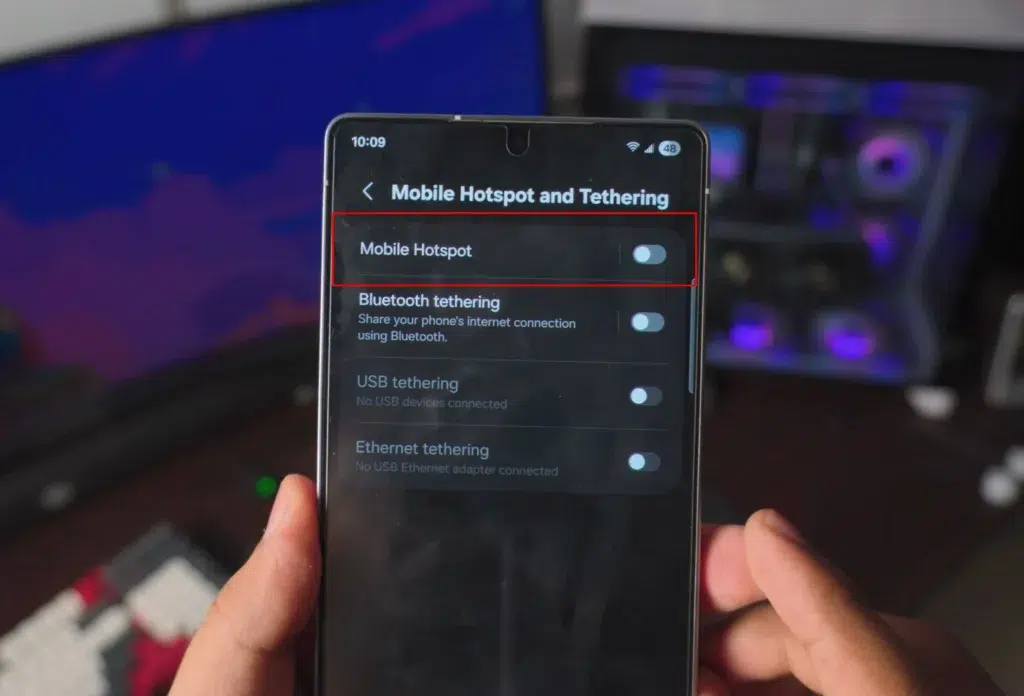
Optional: You can use Hotspot if you don’t have Wi-Fi
Note: Be careful with the Hotspot depending on your Network it might cost you credit or Data.
Go to Settings > Connected Device or Connections > Mobile Hotspot
Connect your TV to your Home Wi-Fi
No matter what TV you got, you should have Wi-Fi Settings on it. You can also see if your TV supports Screen Mirroring Here. Does my TV supports Screen Mirroring?
Go to Menu Settins on your TV and find General or Network Settings:
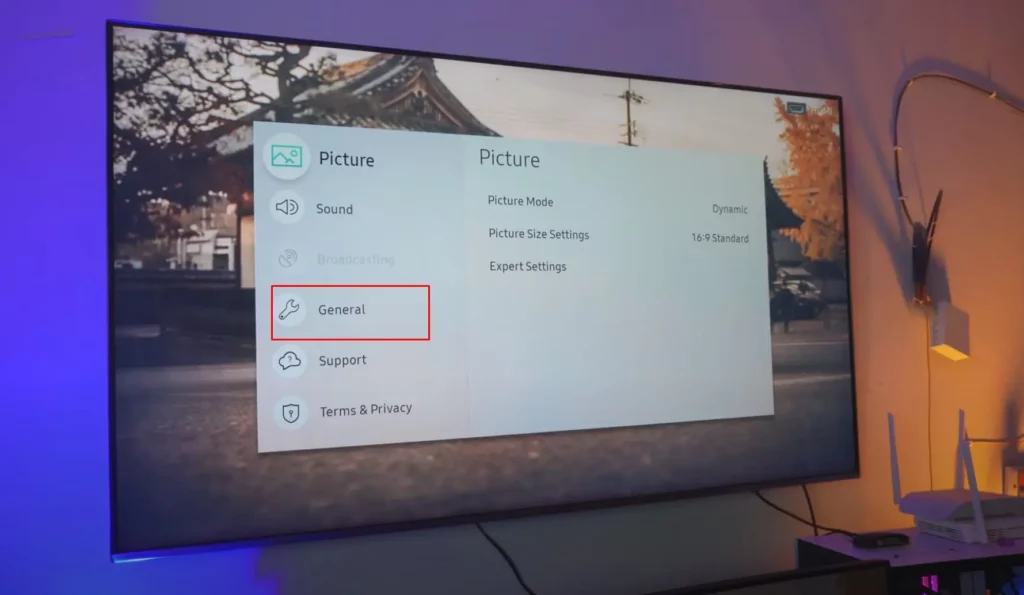
Head over to your Network Settings:
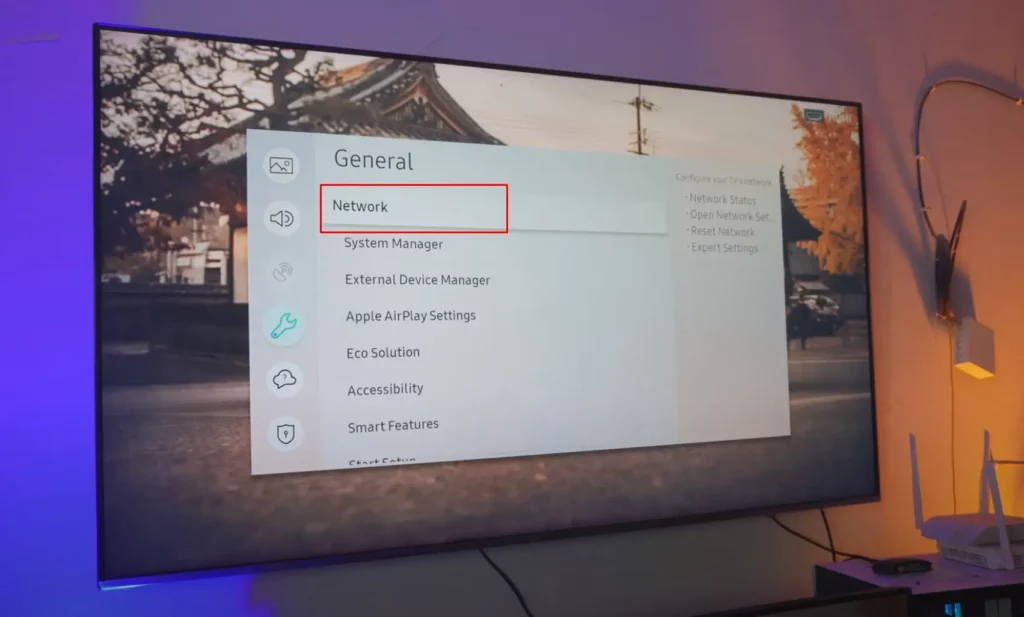
Set up a Connection on your TV:
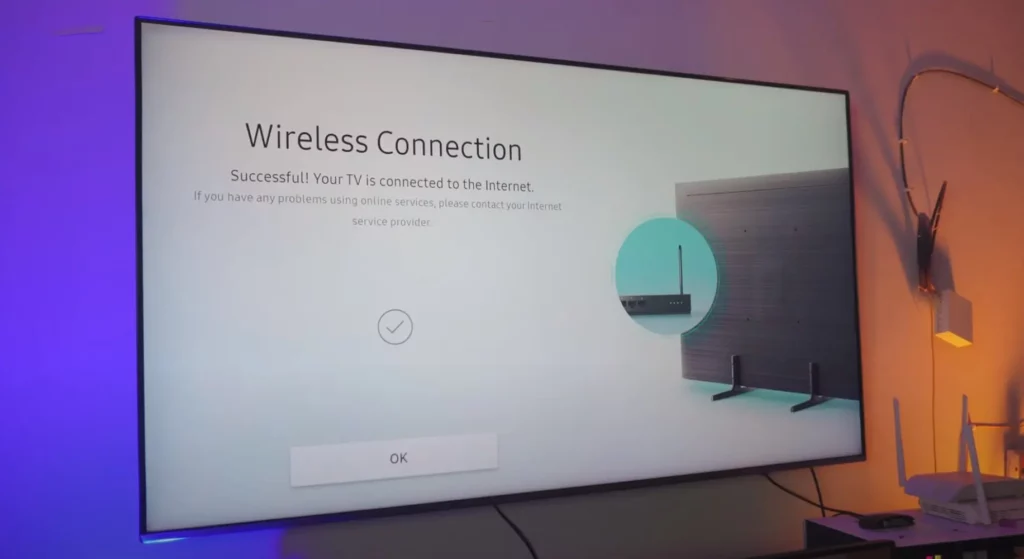
Make sure whatever Network you choose. Your Android Phone is also connected to Same Wi-Fi or Hotspot
For Samsung Android Phones:
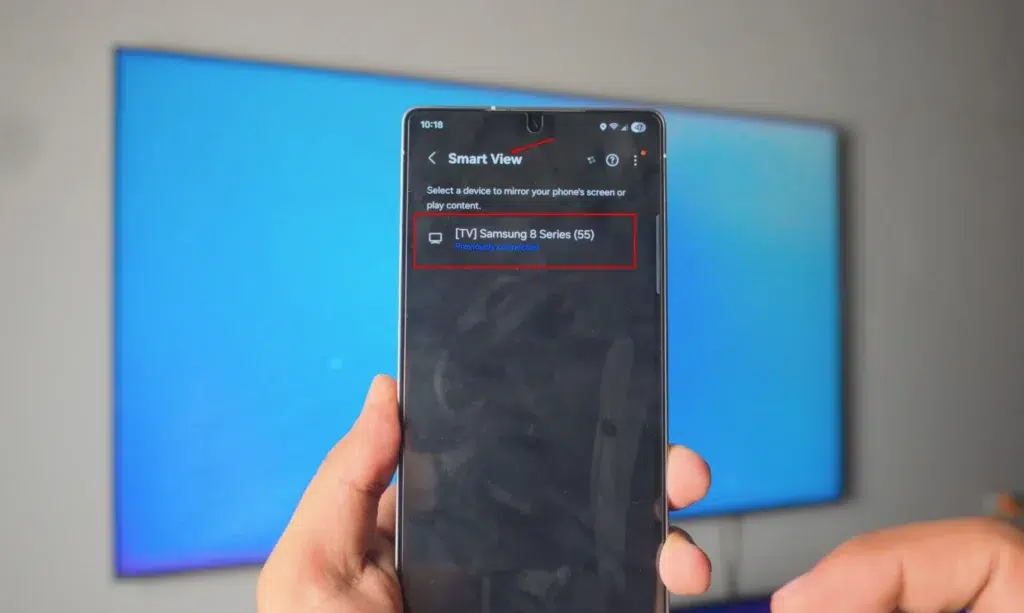
Got a Samsung? Cool. Samsung doesn’t call it “Screen Mirroring”, it’s actually called SMART VIEW for samsung. I know, pretty odd.
So, let’s head over to Settings > Connected Devices > Smart View
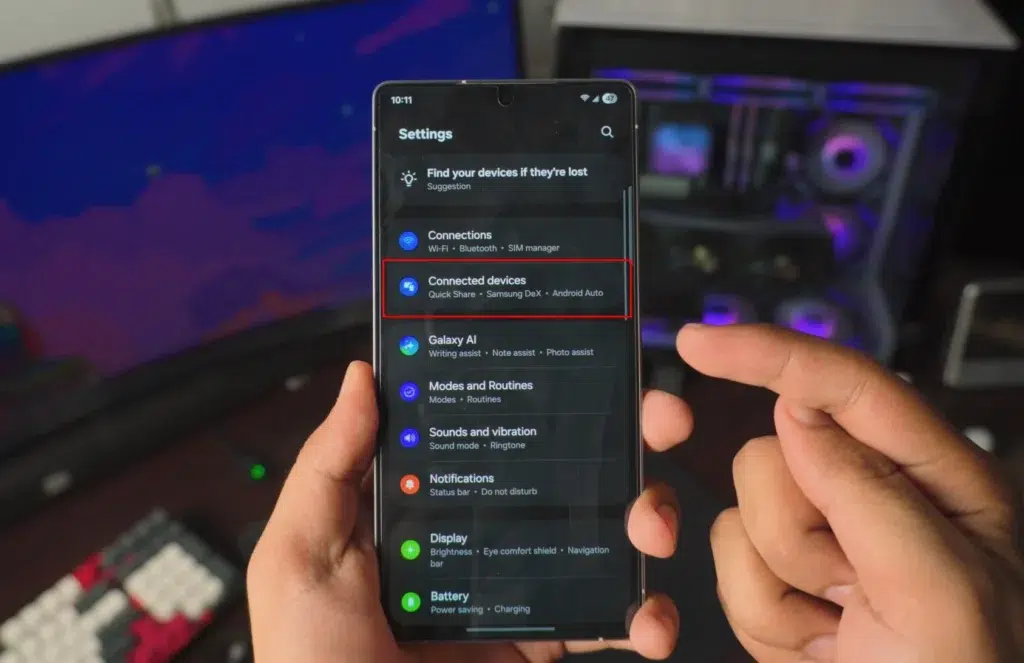
Find “Smart View“
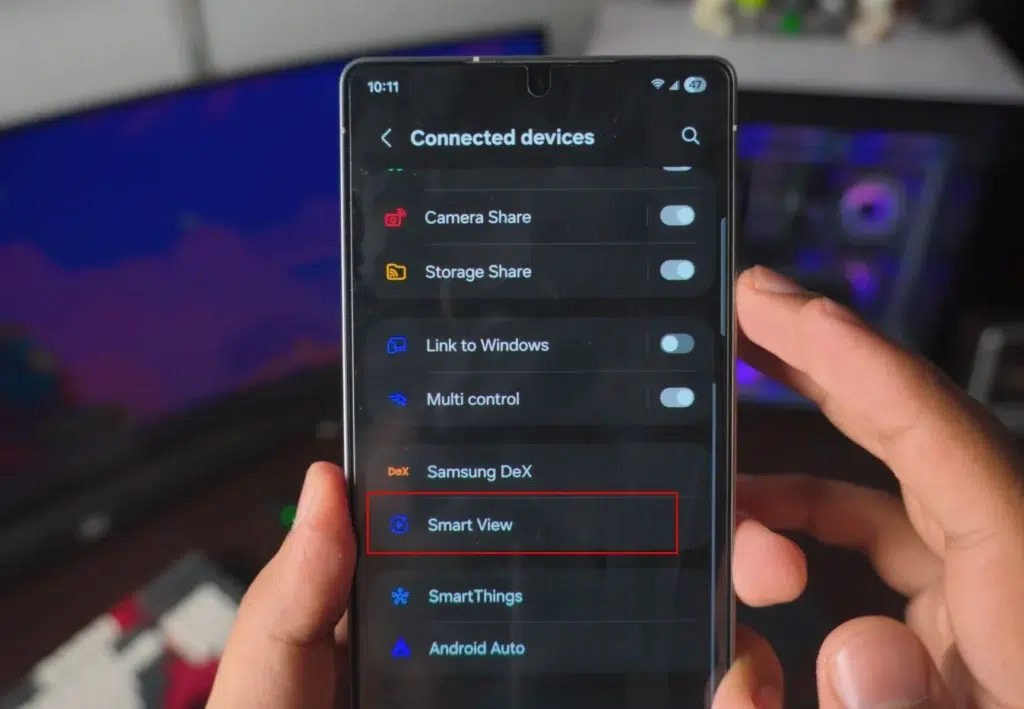
For Regular Android Phones:
For us regular android users haha, it’s pretty easy and straight forward for us.
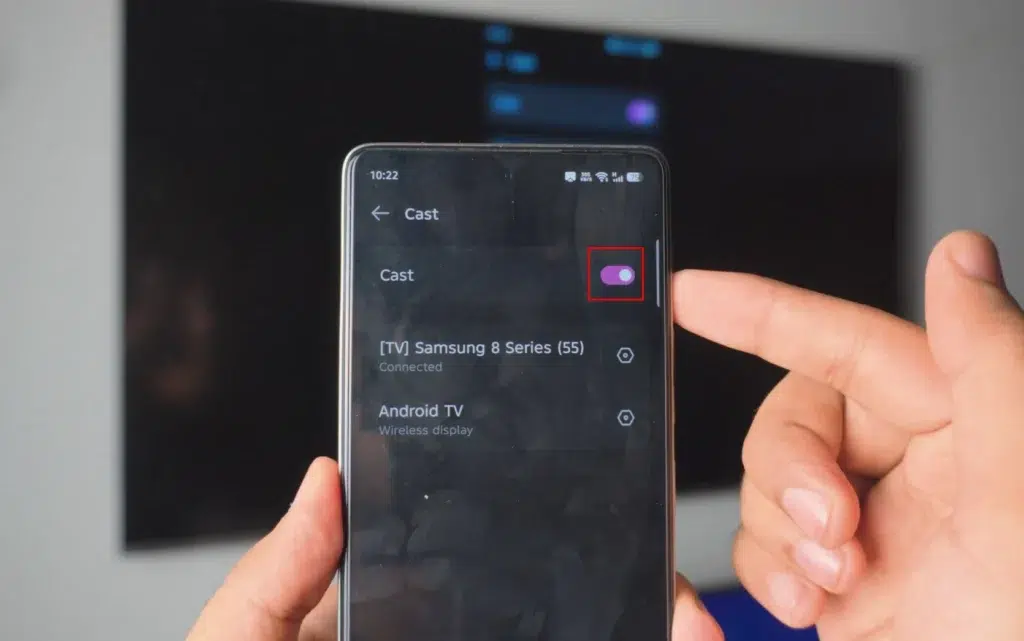
To Connect Regular Android Phones go to Settings > Hotspot & Connections > Cast
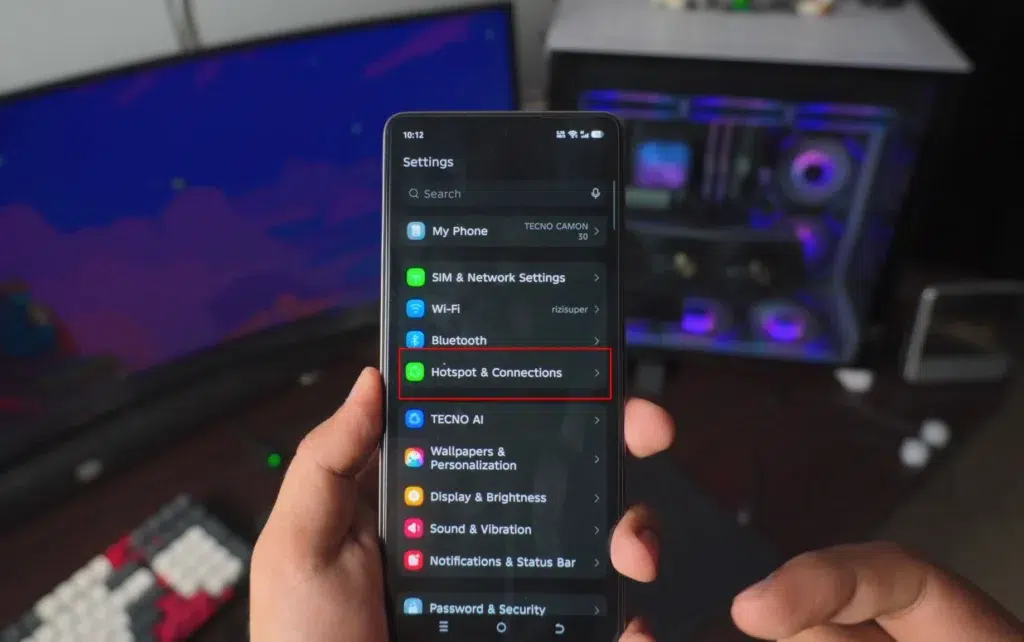
Find “CAST“
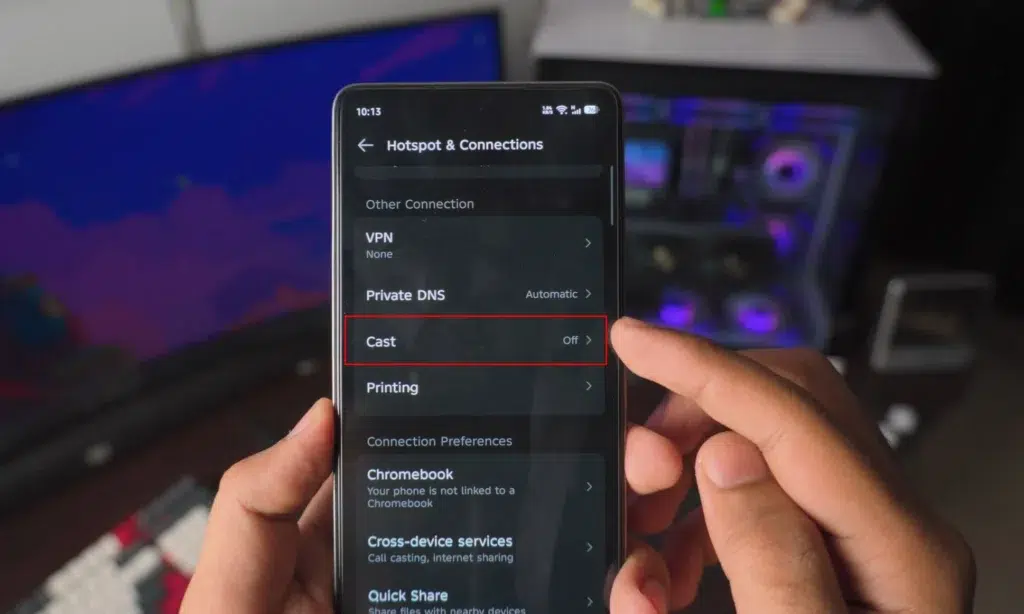
Here’s where things get awesome!
Whatever Android Phone you, weither it’s Samsung or normal. Just Tap on the options I’ve show you above.
Samsung’s Smart View:
Regular Android Phones:
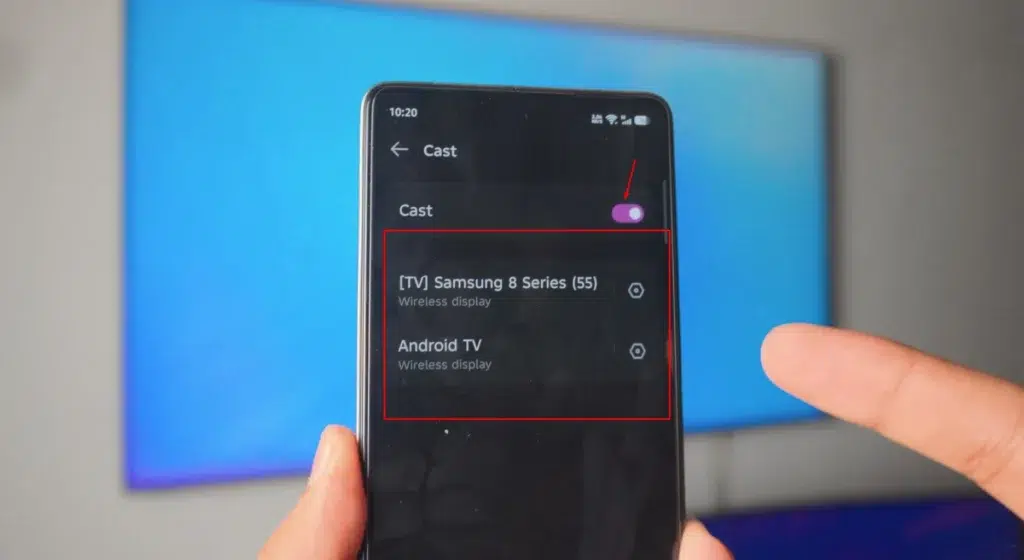
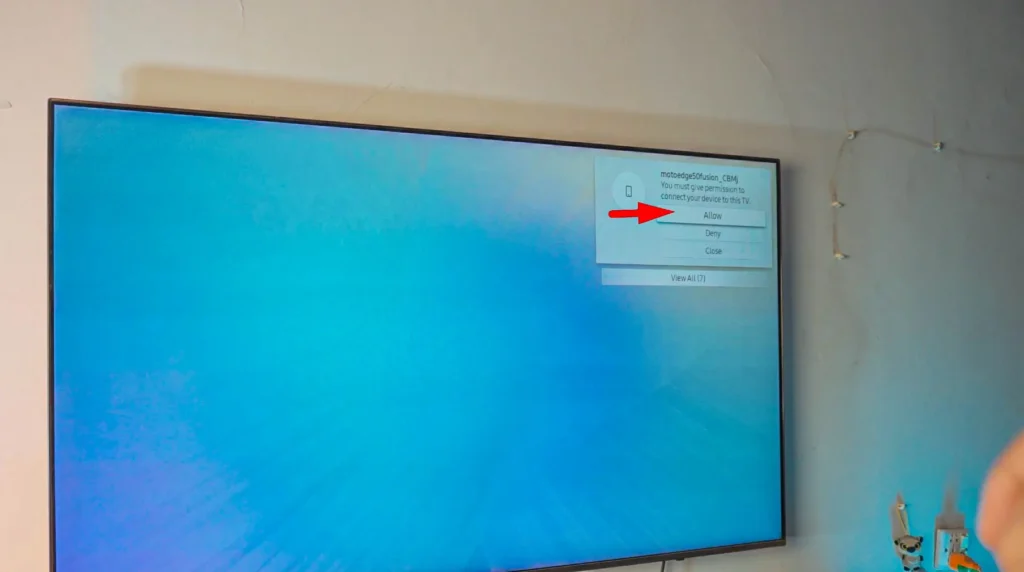
Accept the Device on your TV as it’ll ask for Permission
If you’re doing this for the first time, your TV might ask you for the permission so just use your remote and accept the connection.
Connection Android Phone to TV is Successfull!
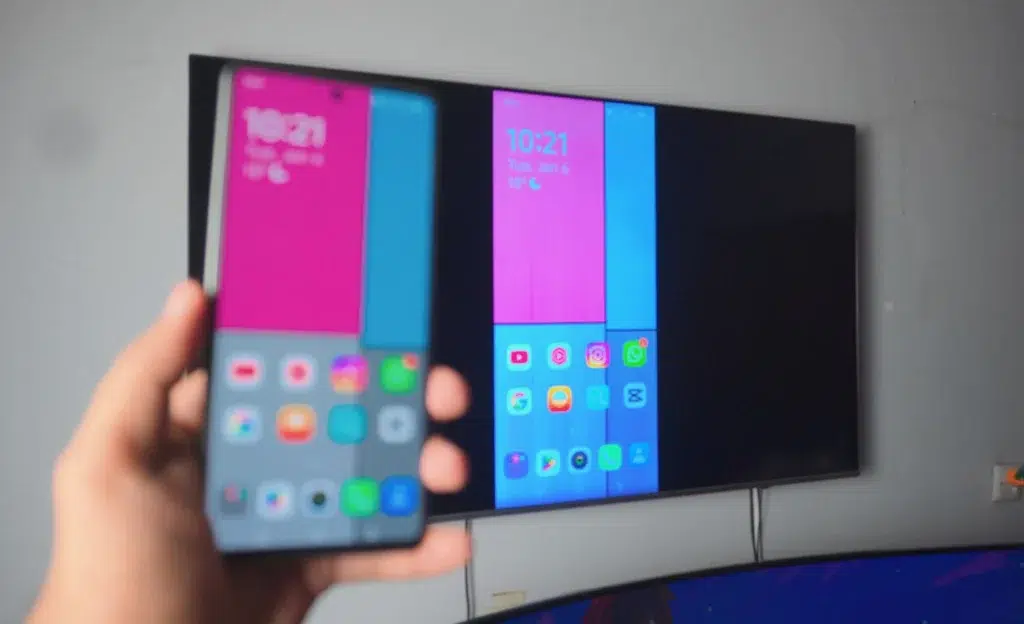
Once your Android Phone is connected:
If it’s samsung it should look like this:
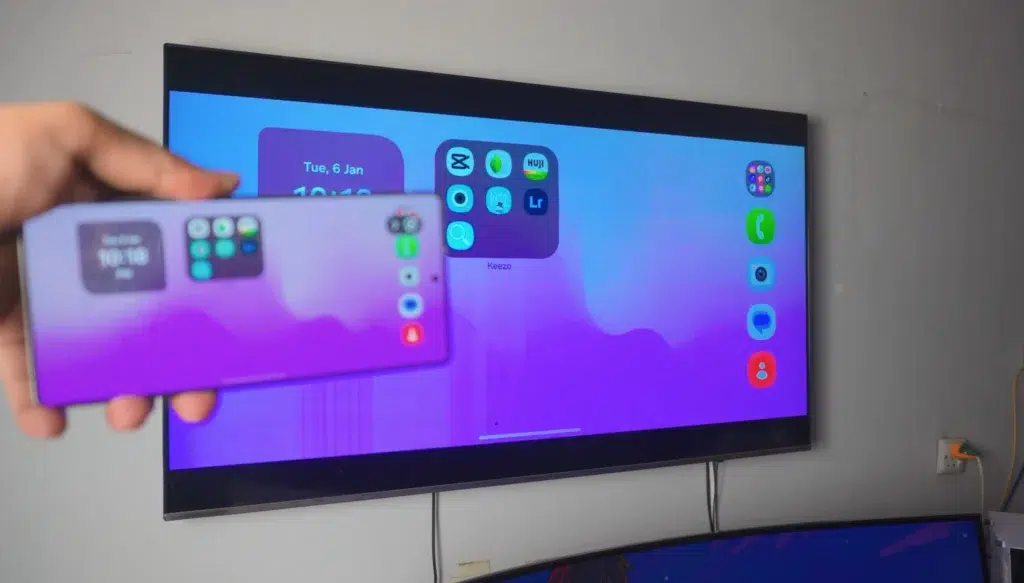
For Regular Android Phones it should look like this:
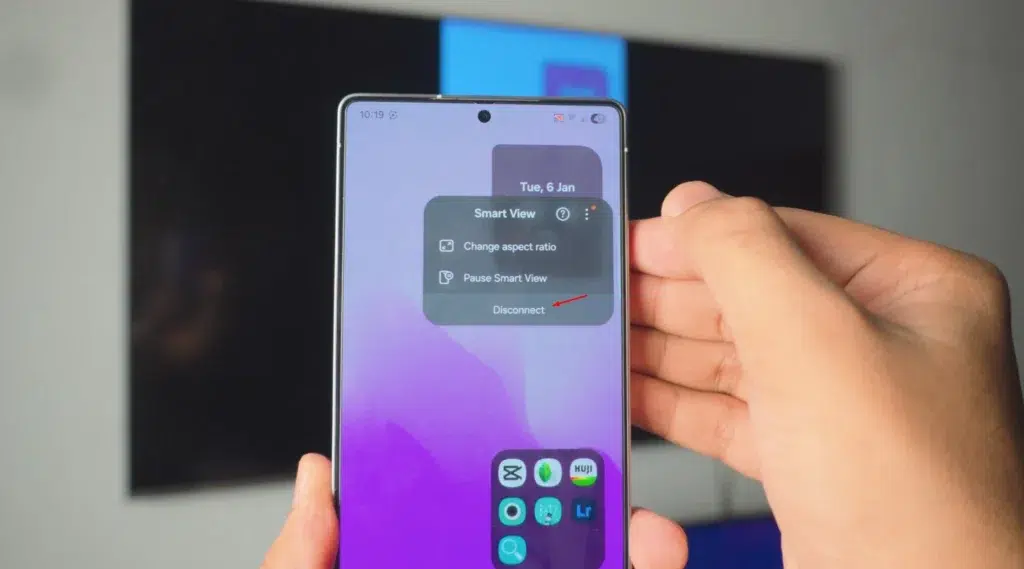
To Disconnect the Connected Android Phone
If you got Samsung: Click on the Floating Smart View icon on your Screen.
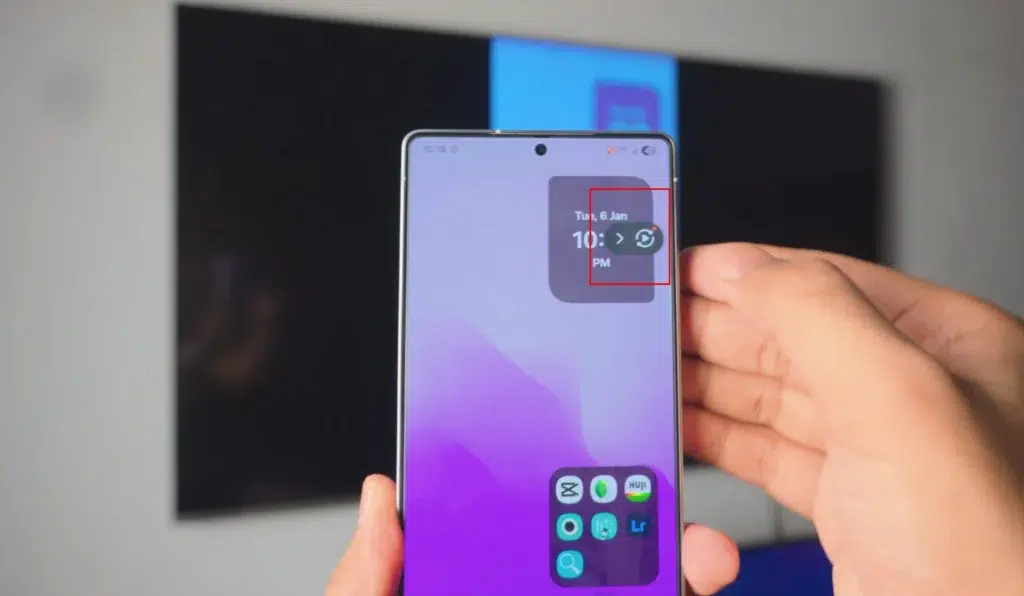
It goes you lots of options like:
- Change Aspect Ratio
- Pause Smart View
- Disconnect
If it’s not Samsung, you just need to turn off the Cast option we used to Connect our Android Phone in the first place
Conclusion:
No matter what android phone you got. In this complete guide I’ll show you settings you need on either Samsung Android Phones or Normal Android Phones to connect your Android Phone to Smart TV.
Video Tutorial:
Affiliate Links:
Get TCL TV on Amazon: https://amzn.to/ROKUTV
Get iPhone on Amazon: https://amzn.to/iPHONE
Get Roku Express: https://amzn.to/RokuExpress