Watch new Tutorials on How-To Screen Mirror on Youtube every Week!
How to Screen Mirroring & Share iPhone with Smart TV:
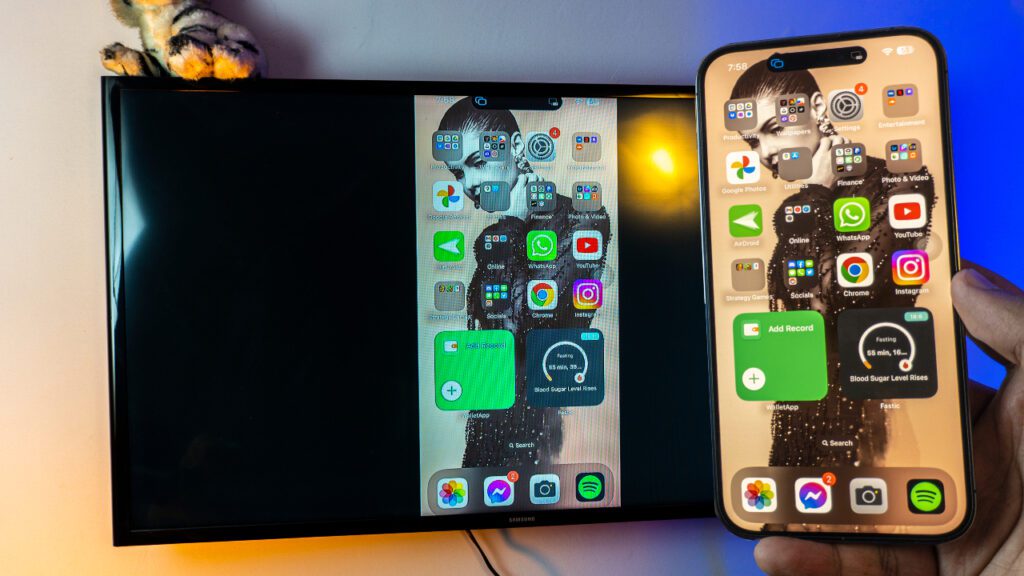
Hey, hope you’re doing great, How to Screen Mirroring & Share iPhone with Smart TV is completely free, with no lag and the best part is that it requires no 3rd-party apps. Yes, you don’t have to download any app to do because we’ll be using the Screen Mirroring Feature in iPhone.
How does it work?

No 3rd-Party Apps mean no Lag and no hassle. We’ll be using the Screen Mirroring Feature of iPhone from your Control Center. No matter what iPhone you’re using. You should see a Screen Mirroring option in your Control Center.
Screen Mirroring iPhone & Share iPhone with Smart TV
Wifi or Personal Hotspot:
When it comes to Networks you’ve options. Let’s say you don’t have access to Wifi Network, that’s alright. We can use Mobile Data as well and also enable Personal Hotspot for later use.

In order to use the Personal Hotspot for the TV, we’ve to enable Mobile Data on our iPhone.
Be Careful as it might cost you Mobile Credit. Because Mobile Data is directly connected to your Network and depending on your Data Usage, it’ll cost you credit.

Once the Mobile Data is Turned on (As shown in the Step Above) You’ll Have Access to Personal Hotspot which we’ll be using Primarily to Make sure our TV and iPhone are on the same Network.
Connect iPhone to the Network to Share iPhone with Smart TV
As discussed earlier, you have the option to either use WiFi or your Mobile Data. For the Sake of this tutorial, I’ll be using WiFi. So, Connect your iPhone to the Network.

Connect your iPhone to the Network. Whether it be Hotspot or WiFi. Just remember we’ll be using the Same Network for the TV as well.
Connect your Smart TV to the Network
iPhone is Connected to your preferred Network! All we need to do now is to make sure our TV is also on the Same Network.
Remember: If your TV doesn’t support WIFI, you can use Ethernet Cable. If the TV doesn’t support any Connection, you need to get a Streaming Device like Roku Express, Chromecast or Amazon Fire Stick.

Choose your Network for TV
As discussed earlier, we’ve two options here. Either use Available WiFi or Use the Hotpot from our iPhone just make sure your iPhone is also on the same network as your TV is.
(Follow the given Instruction)

Enable AirPlay on your Smart TV (optional)
Once the TV and iPhone are on the same network, fire up the AirPlay on your Smart TV.
NOTE: It’s completely optional that you open up the AirPlay on your Smart TV. Often time, once the Wifi is connected it should automatically be enabled so you don’t have to manually enable it.

If you don’t have Apple AirPlay Settings, don’t worry it’s completely optional.
Screen Mirroring iPhone
Once everything is up and running. The iPhone is connected to Network, your Smart TV is also on that Network. All we gotta do is Share iPhone with Smart TV. And it’s very simple.

Refer to Video Tutorial for more information:
How to Screen Mirroring & Share iPhone with Smart TV
See, wasn’t that easy? No Apps, no lag and completely free.
How to Stop the Chromecast?
Extremely simple, if you’re using iPhone 14 Pro, click on Dynamic Island. Or Head over to Screen Mirroring Screen and Click on Stop Mirroring.

How to Screen Mirroring & Share iPhone with Smart TV
See how easy the whole process was? Hope you enjoyed it, feel free to get in contact if you’ve any questions.
Conclusion:
Screen Mirroring & Share iPhone with Smart TV is extremely simple nowadays. Just one click from the Control Centre and that’s it. No need to download any app, it’s built-in. 100% Free and Smooth.