Watch new Tutorials on How-To Screen Mirror on Youtube every Week!
How to Chromecast iPhone Screen to TV:
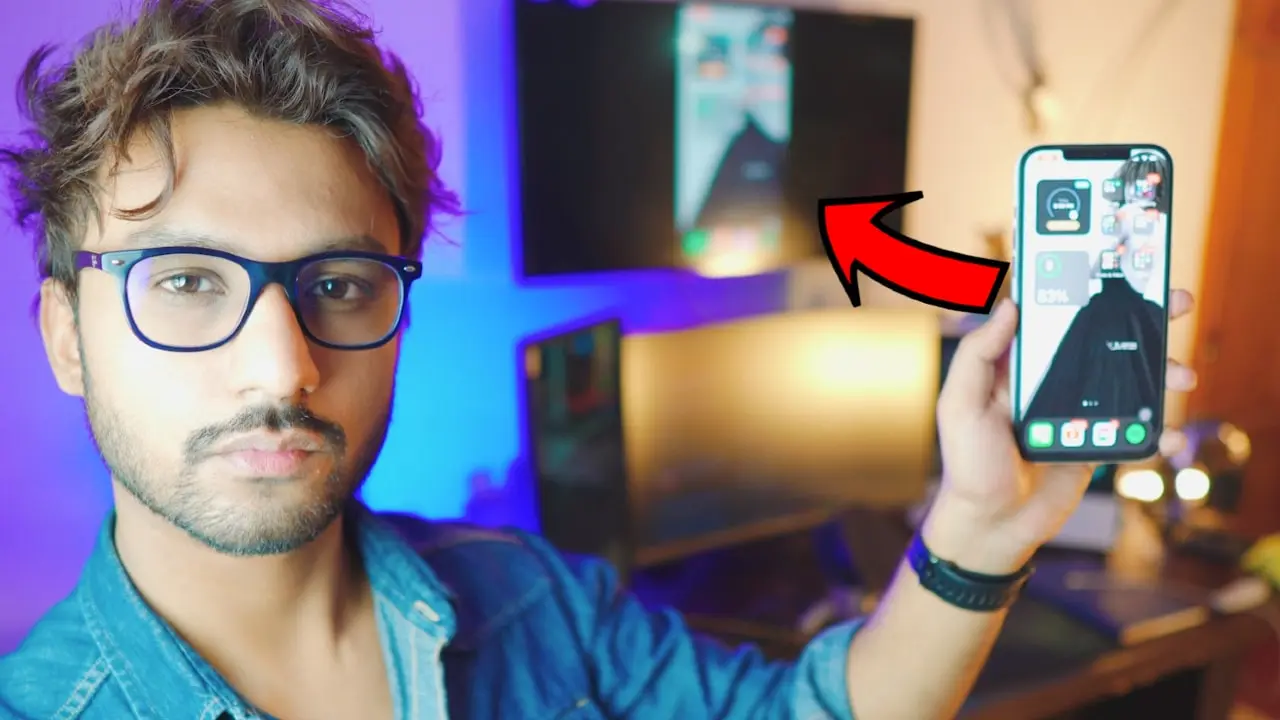
Hey hope you’re doing great, today we gonna Chromecast iPhone Screen (any iPhone) to TV completely free and wirelessly. Using a free App called Replica is probably one of the best Screen Mirroring apps on the iOS App Store. It’s Clean, elegant and most of all it’s really easy to use.
How does it work?

Replica App makes it so easy to Chromecast any iPhone screen to TV. With just a few easy steps we’re all set. Basically, the Replica App scans all the TVs’ that are on your network and display them in a list which makes it so easy to select your TV and Chromecast your iPhone to your TV seamlessly.
Download Replica App on iPhone:
You need to have access to the network in order to download Replica App on your iPhone.
Wifi or Personal Hotspot:
When it comes to Networks you’ve options. Let’s say you don’t have access to Wifi Network, that’s alright. We can use Mobile Data as well and also enable Personal Hotspot for later use.

In order to use the Personal Hotspot for the TV, we’ve to enable Mobile Data on our iPhone.
Be Careful as it might cost you Mobile Credit. Because Mobile Data is directly connected to your Network and depending on your Data Usage, it’ll cost you credit.

Once the Mobile Data is Turned on (As shown in the Step Above) You’ll Have Access to Personal Hotspot which we’ll be using Primarily to Make sure our TV and iPhone are on the same Network.
Step 1: Download Replica App
Go to AppStore and Search for Replica App (as shown below)

Step 2: Connect iPhone to the Network
As discussed earlier, you have the option to either use WiFi or your Mobile Data. For the Sake of this tutorial, I’ll be using WiFi. So, Connect your iPhone to the Network.

Connect your iPhone to the Network. Whether it be Hotspot or WiFi. Just remember we’ll be using the Same Network for the TV as well.
Step 3: Connect TV to the Network
Replica App is Downloaded! iPhone is Connected to your preferred Network! All we need to do now is to make sure our TV is also on the Same Network.
Remember: If your TV doesn’t support WIFI, you can use Ethernet Cable. If the TV doesn’t support any Connection, you need to get a Streaming Device like Roku Express, Chromecast or Amazon Fire Stick.

Step 4: Choose your Network for TV
As discussed earlier, we’ve two options here. Either use Available WiFi or Use the Hotpot from our iPhone just make sure your iPhone is also on the same network as your TV is. Because Replica App Scans your Network for all available TVs’ on the Network.
(Follow the Givin Instruction)

Step 4: Chromecast iPhone to TV
Once the TV and iPhone are on the same network, fire up the Replica App on the iPhone and select your TV.
If it doesn’t see your TV listed, restart the Replica App.

Step 5: Skip the Purchase Screen
Once you click on your TV, it’ll ask you to purchase it. Don’t worry, as I said before it’s free. Just follow my steps and you’ll be alright.

If you look closer at the top right corner you have a timer of 8 seconds. Just wait for and it’ll let you skip the purchase screen.

After 8 seconds, the timer is gone and you have the option to skip the purchase screen.

Select “Ignore Offer” and we’re DONE!
Refer to Video Tutorial for more information:
Step 6: Start the Chromecast

Once you Skip the Purchase Screen, you’ll be directed to Broadcast Screen. Just Start Broadcast and BAM! iPhone Chromecast to TV!
Chromecast iPhone to TV – Free and Wirelessly!
See, wasn’t that easy? That’s why Replica is one of the Best Screen Mirroring Apps on the AppStore for iOS.

How to Stop the Chromecast?
It’s really easy if you look at the screen of your iPhone. You’ll a red icon at the top left corner.

Just click on it, and it’ll ask you whether you wanna stop the Chromecast or not.

Just click “Stop” and you’ve stopped Chromecast. So easy!
Chromecast iPhone Screen to TV
See how easy the whole process was? Hope you enjoyed it, feel free to get in contact if you’ve any questions.
Conclusion:
Chromecasting iPhone Screen to TV using a free App called Replica. With Replica., it’s wireless and completely free and it’s so easy to Chromecast iPhone Screen to any TV 2022.