Watch new Tutorials on How-To Screen Mirror on Youtube every Week!

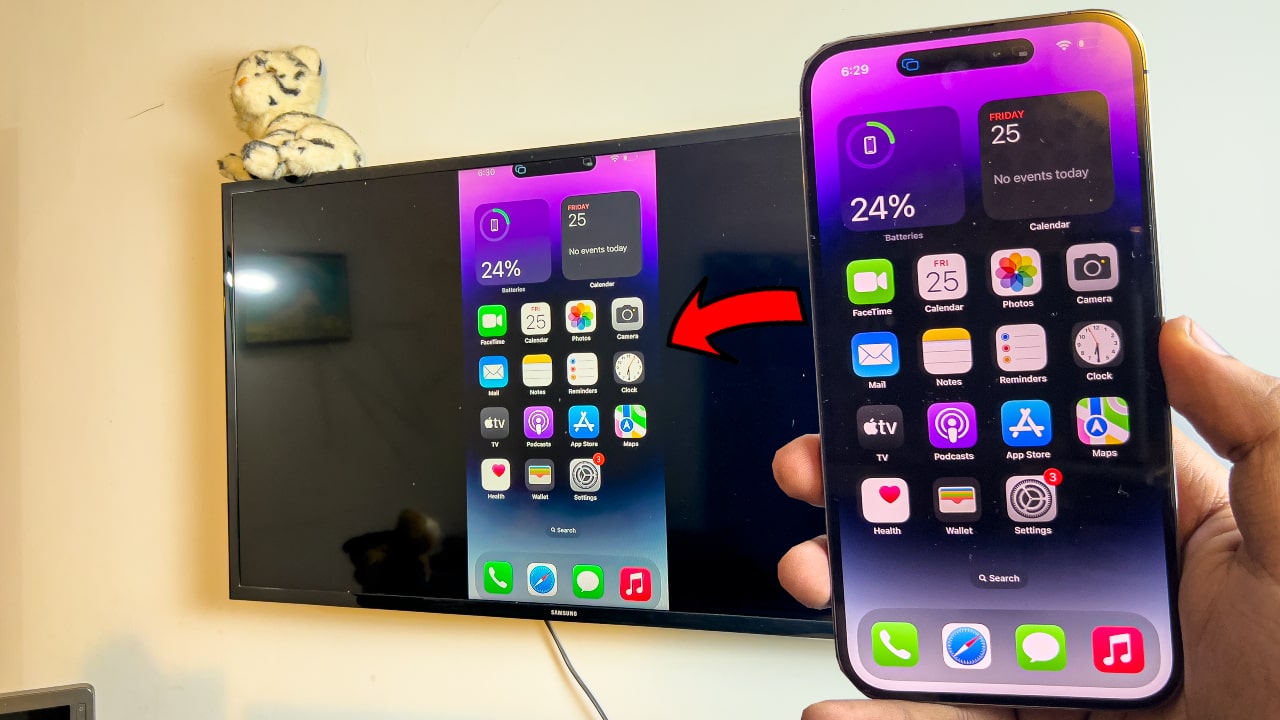
Screen Mirroring with iPhone 14 Pro or any iPhone to your Smart TV is completely free and easy. No need for any 3rd party apps, everything’s just built-in. Easy Peasy!
Screen Mirroring with iPhone iOS 16
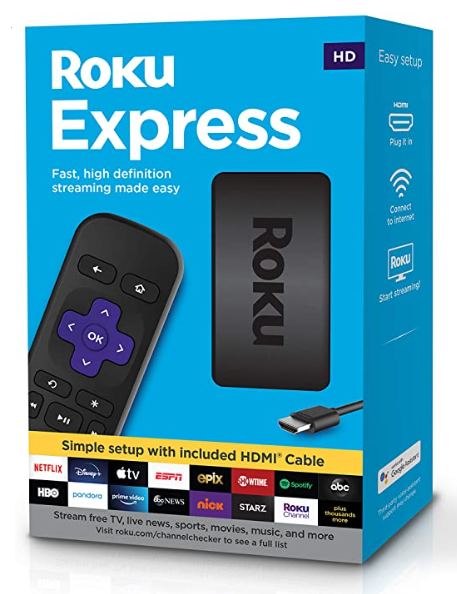
Buy Roku Express on Amazon:
Turn your normal TV into a Smart-TV with just a simple RokuExpress Dongle!
Smart TV:
Smart TVs’ these days have AirPlay Built-in just like Apple TVs’. Everything we’re doing on our Smart TV is completely free and very easy. Just a few clicks and Bamm! You’re mirroring your iPhone iOS 16 to your TV.
Buy Roku Express on Amazon (optional)
Smart TV wifi settings:
Settings might differ from your TV, but you should be able to navigate with ease as it follows the same idea for all TVs’.
Step 1: Go to the TV Settings
Go to your TV Settings as I have. (Step by Step guide below)

Step 2: Head to the Internet & Network Settings
Go to your Network Settings as shown in the Step by Step guide below.

Step 3: Connect your TV to your Wi-Fi or any other connection
Inside the Network Settings, connect your Roku Express to your Wifi or Mobile Hotspot.

Step 4: Connect your iPhone & Roku Express to the Same Wi-Fi Connection
Make sure your iPhone and your Roku Express are connected to the same connection.
As shown in the Step by Step guide below.

Step 5: Open AirPlay Settings on Roku Express
Once your Roku Express is connected to WiFi, go back to settings and Open the AirPlay Settings!
(As Shown Below)

Step 6: Inside AirPlay Settings
Inside the AirPlay Settings, It should look exactly the same if you’re doing it for the first time. If you’re not doing it for the first time, it’s gonna be a Lil different but works the same.


Step 7: On your iPhone 14 Pro
On your iPhone (any) you gotta make sure that your iPhone and your TV are on the Same Network to Screen Mirror iPhone iOS 16 to your TV.

Step 7: Connect iPhone 14 Pro with the Same Network
On your iPhone (any) go to your Control Center and Look for the Screen Mirroring option.
If: You’re on iOS 16 it should look exactly the same as shown below.
If: You’re not on iOS 16 or 15, you’ll find the Screen Mirroring Option a Lil bigger.


Step 8: Select your Roku Express
Once you select the option, it’ll prompt you to enter the code that your Roku Express TV displays.

Step 9: Enter the Displayed Code into your iPhone
Enter the 4-Digit code that your TV shows into your iPhone.

Step 10: It’s DONE!
Once you enter the code, it’ll automatically screen mirror your iPhone to your Roku Express. Fast and Quick!

Conclusion:
Mirroring iPhone 14 Pro to your Smart TV, completely free and easy with just a few steps. Smart TVs support AirPlay so no third-party apps are needed to Mirror iPhone iOS 16 to your TV.
Video Tutorial:
Affiliate Links:
Get TCL TV on Amazon: https://amzn.to/ROKUTV
Get iPhone on Amazon: https://amzn.to/iPHONE
Get Roku Express: https://amzn.to/RokuExpress